Support & Customer Service Portals
Mambu uses two dedicated platforms to handle your account management and support needs. Depending on your goal, you will use either the Mambu Support and Ticket Portal or the Customer Service Portal.
Mambu Support and Ticket Portal (New)
The Mambu Support and Ticket Portal is your primary channel for:
- Raising support cases.
- Tracking support cases.
- Automated self-service assistance.
It can be accessed at http://support.mambu.com.
Logging in
You log in to the Mambu Support and Ticket portal with your email address. A multifactor authentication code is sent to your inbox - enter it to complete the login. Once you are in, the portal shows all of your open cases.
Instant Help with Fin AI Assistant
The portal features Fin AI Assistant, an intelligent tool designed to provide instant, automated answers to your product and troubleshooting questions 24/7.
- Fin AI Assistant: Ask Fin questions directly in the Mambu Support and Ticket Portal to receive immediate responses sourced directly from Mambu's documentation and internal knowledgebase.
- Learn More: Discover Fin's capabilities and best practices by exploring the Fin AI Assistant Guides.
Instant Help with Fin AI Assistant
Fin AI responds first. It asks for your tenant URL, the severity of the issue, and a description of what is happening, then either resolves your question or asks for the detail it needs. When Fin AI cannot resolve the issue, it asks you to describe the business impact and opens a ticket for a support team member. Upon creation of the ticket, you receive a confirmation email with your ticket number.
Fin AI is well suited to questions about how features work, configuration, and common errors.
Support & Navigation Guides
For detailed, step-by-step instructions on creating cases, managing users, and navigating the portal, refer to our dedicated guides:
- Creating Support Tickets: Learn how to open and submit a new case by reading How to Create a Support Ticket.
- Navigating Support Requests & Cases: Learn how to track active cases and manage your open requests in Support Requests & Cases.
- Access & User Management: Learn how to manage team permissions and portal access in Access & User Management.
Raising and managing support cases
Severity levels
Every case is assigned a severity level from P1 to P5. Severity is agreed jointly between you and Mambu, and it can change during the life of a case as we learn more.
| Level | Definition |
|---|---|
| P1 | The Mambu platform is unavailable or so severely impacted that you cannot reasonably continue to operate, or continuing to operate without a resolution puts your business at risk. |
| P2 | Critical capabilities of the Mambu platform contain a bug that prevents you from executing one or more critical business functions, with a material impact on your business, and no workaround exists. |
| P3 | Important capabilities of the Mambu platform contain a bug that prevents you from executing one or more important business functions, with an impact on your business. A workaround exists but is not optimal. |
| P4 | The Mambu platform contains a bug that may disrupt inessential business processes. A workaround is available, or the capabilities are not imperative to your business. |
| P5 | Service request. You need information or a clarification about the Services, and there is no impact on the operation of the Service. Raise a P5 case rather than asking on Mambu Community if your question contains sensitive information or data. |
Response and resolution targets depend on your Mambu support package. To see the targets that apply to your organisation, go to the SLA Information section on your account details page in the Customer Service Portal, or check your contract. See Accessing SLA information.
How Mambu responds
Coverage hours vary by severity level and by support package - see the SLA Information section in the Customer Service Portal for the hours that apply to you.
What happens after you submit a case
-
You receive an auto-acknowledgement. The email confirms that we have your case and gives you a case number to quote in future. To include colleagues, cc them when you reply to the acknowledgement.
-
A team member reviews your case. You will get either an answer or a request for more information. Some cases need investigation from our technical teams, and we will tell you when that happens. Occasionally we will propose a call to work through the details together.
-
The conversation continues in one thread. Reply to our emails in the same thread either via Messenger, or via email to keep everything about that case in one place. Please do not raise a new case about an issue that already has one. Do raise a new case whenever you have a question about a different topic, so that we can track each one separately.
-
We confirm before closing. Once we have given you a response, we leave the case open for a while in case you have follow-up questions. After that we email you to let you know the case will be marked as resolved. You can reopen a closed case at any time if you need more help.
If we do not hear back from you, we send follow-up messages every 24 hours over a 72-hour period, excluding weekends, and then close the case. See Customer case non-response policy.
Provide more information for faster resolution
The more context you give us, the faster we can triage your case, find related history, and get to an answer.
Start with the context and the business impact. For example:
- "We are trying to create a new loan product that we want to launch within the next month."
- "We cannot transact on one of our accounts (ID #12345) and the client needs this resolved urgently."
- "We received the following error message while trying to do X. This severely impacts our business."
Say clearly what you want us to do. For example:
- "Please provide guidance on the product configuration."
- "Please fix the account."
- "Please help us understand what is causing the error."
Include as much supporting detail as you can:
- IDs of accounts, transactions or products
- Screenshots
- Detailed replication steps, including the expected and the actual outcome
- The URL of the affected Mambu instance - always
- Anything else that helps us understand the question
For some problems, a capture of your network traffic helps significantly. See Capturing Network Traffic.
API cases
API cases need precise detail. Include the person responsible for your API integration on the case, and give us all four of the following.
1. The domain, endpoint and method of the call
POST https://[instance].mambu.com/api/loans/{loanAccountId}:changeInterestRate
2. The JSON payload or parameter values of the call
{
  "interestRate": 0,
  "valueDate": "2016-09-06T13:37:50+03:00",
  "notes": "string"
}
3. The response you received after making the call
{
  "errors": [
    {
      "errorCode": 0,
      "errorSource": "string",
      "errorReason": "SUCCESS"
    }
  ]
}
4. The problem, or the result you expected
For example: "I expected the API to return an error rather than a success, because the account was not active yet."
Giving Mambu access to your environment
To investigate some issues we need read access to your Mambu system. This access is read-only and switched off by default - you turn it on with the Mambu Support Access toggle. See Granting access to your account with the Mambu Support user.
Customer Service Portal
The Customer Service Portal at mambu.my.site.com is designed for managing organization settings, contacts, and environment infrastructure.
In February 2023, the URL to access the Customer Service Portal changed from https://mambu.force.com to https://mambu.my.site.com.
You can use the Customer Service Portal to:
- Manage your sandbox.
- View documents from Mambu.
- Manage contact information.
- View invoice-related data.
Accessing the Customer Service Portal
You must use multifactor authentication when accessing the Customer Service Portal.
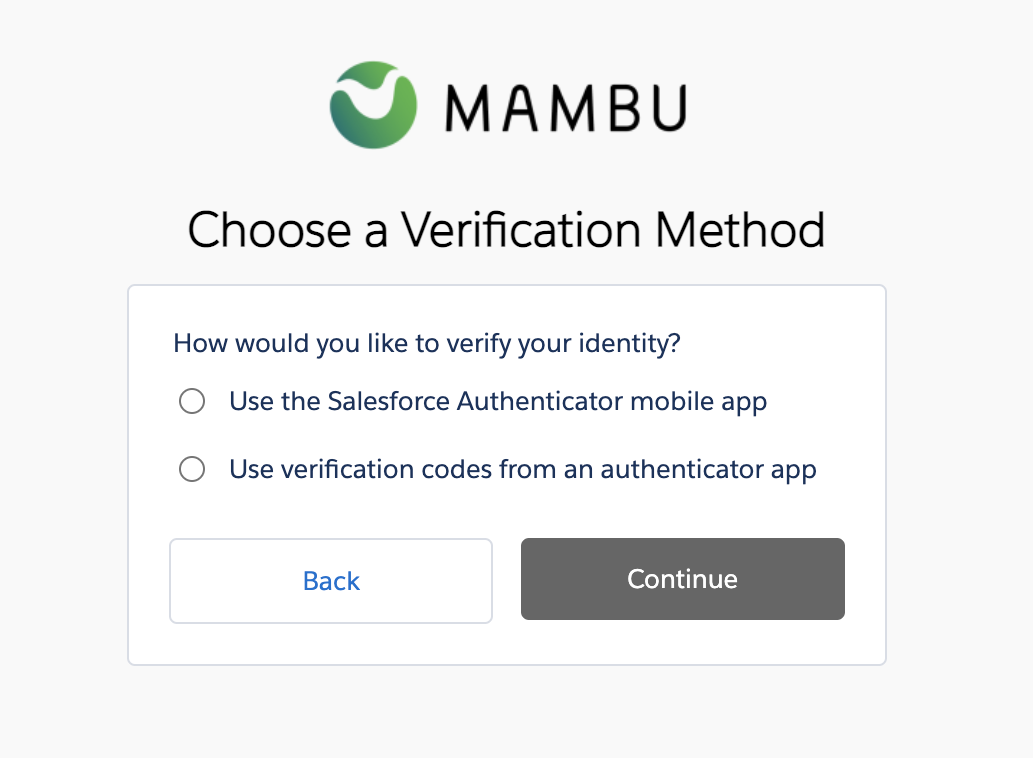
The first time you log in to the portal, you will have to choose the authenticator app that you will use on your mobile device.
We recommend using the Salesforce Authenticator mobile app; however you may choose to use another authenticator app.
Once you have set up your authenticator app, you cannot change it. If you have any issues setting up multifactor authentication, please contact us through the Mambu Support page.
Managing users
During the onboarding process, our support team will create onboarding user accounts for you based on the available onboarding user types. For more information, see Onboarding user types below.
After onboarding is completed, these onboarding user accounts are deleted and we will provision you with regular user accounts. For more information about the available user types for regular users, see Regular user types.
This section describes managing Customer Service Portal users only. For information on managing Mambu UI users, see Authentication and User Management.
Onboarding user types
The available user types for onboarding user accounts.
| User Type | Access |
|---|---|
| Onboarding Admin user |
|
| Onboarding Technical user |
|
| Onboarding Finance user |
|
Regular user types
The available user types for regular user accounts.
| User Type | Access |
|---|---|
| Admin user |
|
| Technical user |
|
| Support user |
|
| Finance user |
|
| General user |
|
Requesting new users
To request a new CSP user, contact your Mambu Champion to discuss what level of access your new user needs and to determine what user type to request. The Mambu Champion can then raise a support case through the Customer Service Portal to submit a user request. Once our team processes your request you will hear back from us.
If a user is inactive for a period of six months, the user account will be deleted.
Accessing the Administrator section
The Administrator section allows you to keep track on user login, account history and contact history changes. To access, please go to More > Administrator.
User login history
Onboarding administrators and regular administrators may access user login history, by using the navigation bar and going to More > Administrator > User Login History.
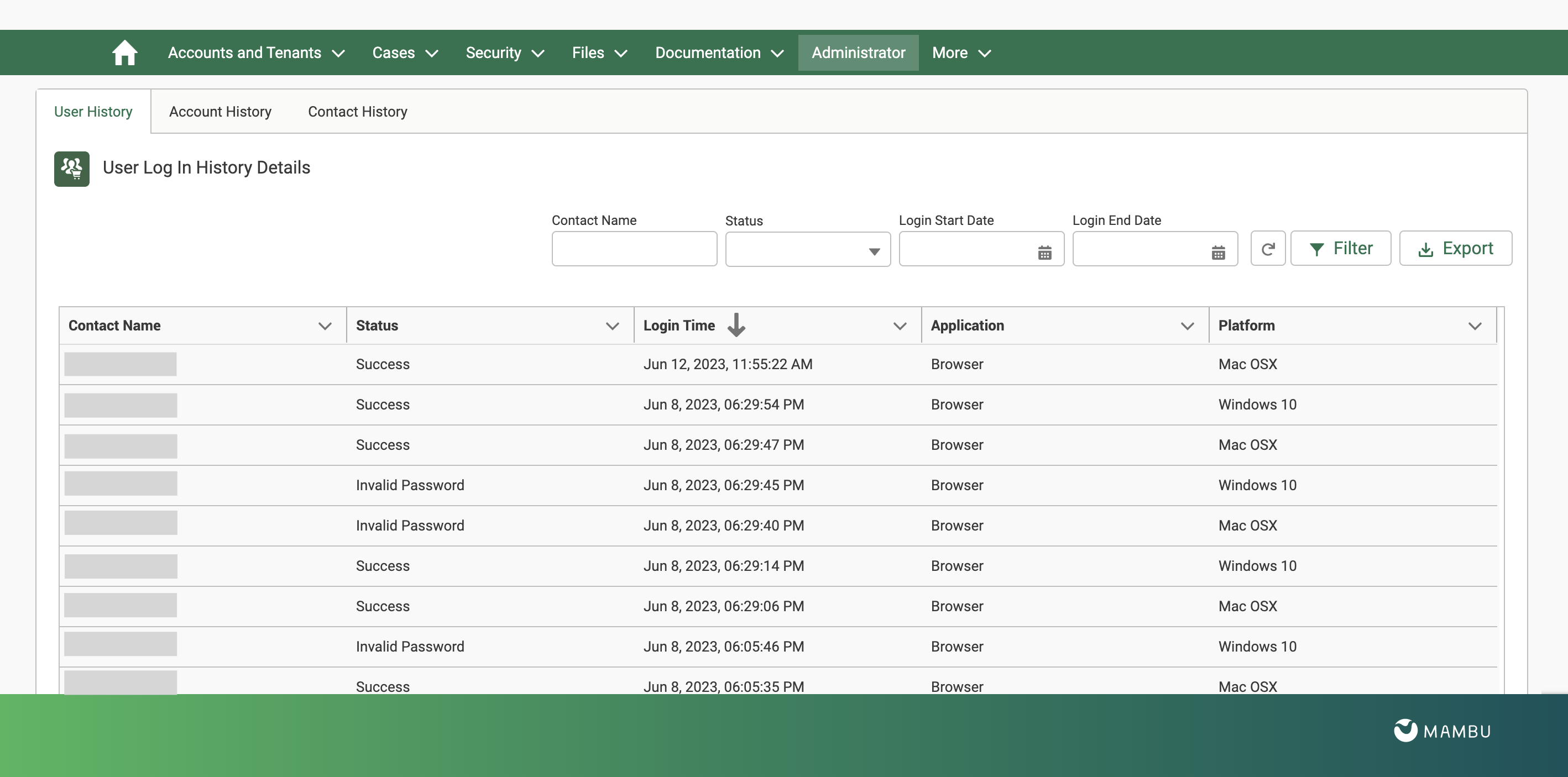
On the User Log In History details page, you may filter the user login history list by contact name, status, login start date, and login end date. You may also export up to six months of data at a time to CSV.
The following table describes the available status types for a user login entry.
| Status | Description |
|---|---|
| Success | The user succesfully logged in by using their password and then completing multi-factor authentication. |
| Multi-factor Required | The user provided the correct password, however they have not succesfully completed multi-factor authentication. |
| Invalid Password | The user entered the wrong password. |
| Password Lockout | The user entered the wrong password, the maximum number of times, and has been locked out of the system. To unlock the user, please contact us throughMambu Support. |
Account History
Onboarding administrators and regular admininistrators can access account history selecting More > Administrator > Account History in the navigation bar.
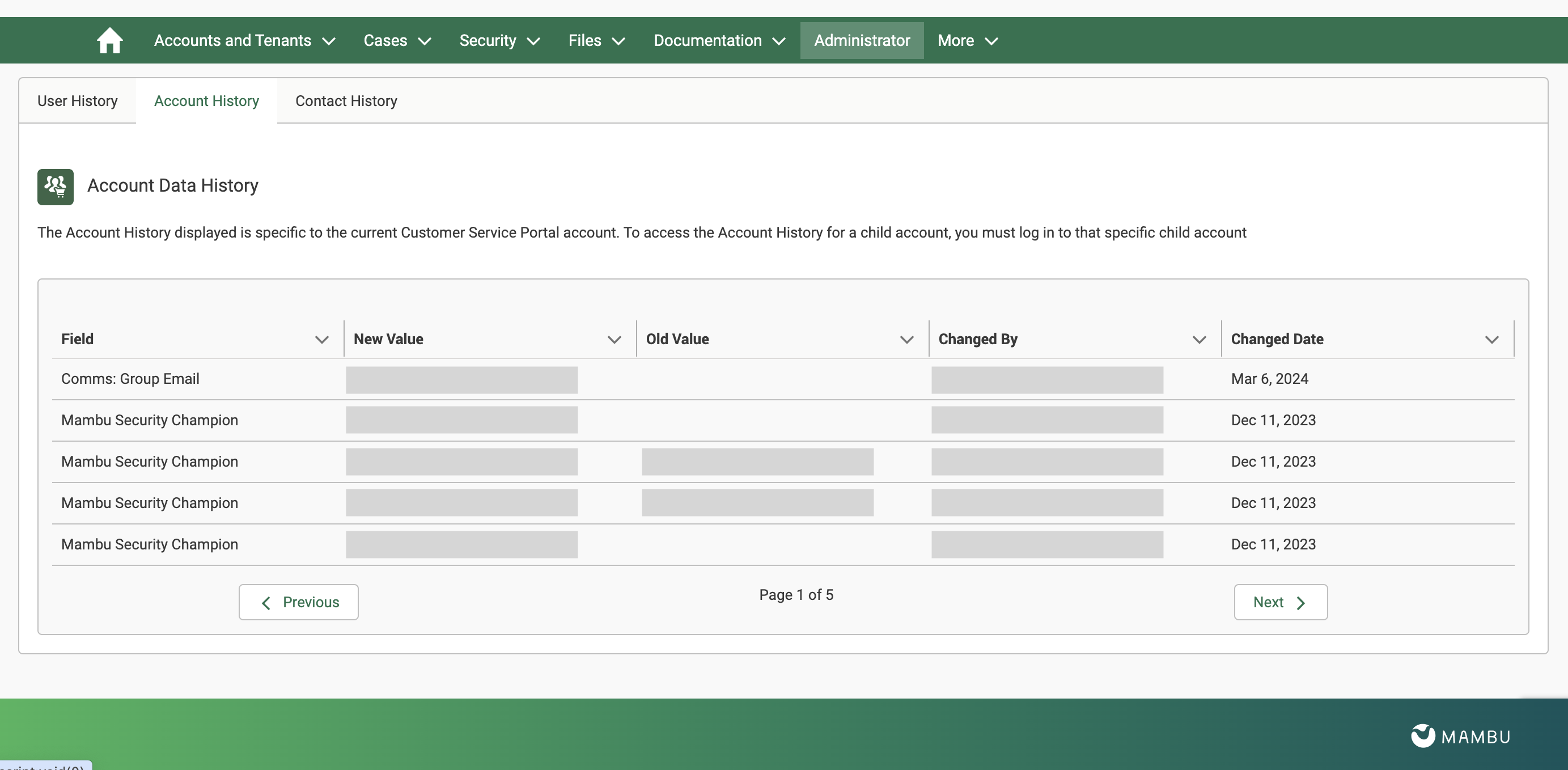
The Account Data History details page contains a change log of the Mambu Champion, the Mambu Support Champion, Secondary Mambu Champion, and the P1 Escalation Contact. In the Account Data History section you can see the new value, the old value, the date, and the owner of the change.
Contact History
Onboarding administrators and regular administrators can access contact history by seleting More > Administrator > Contact History in the navigation bar.
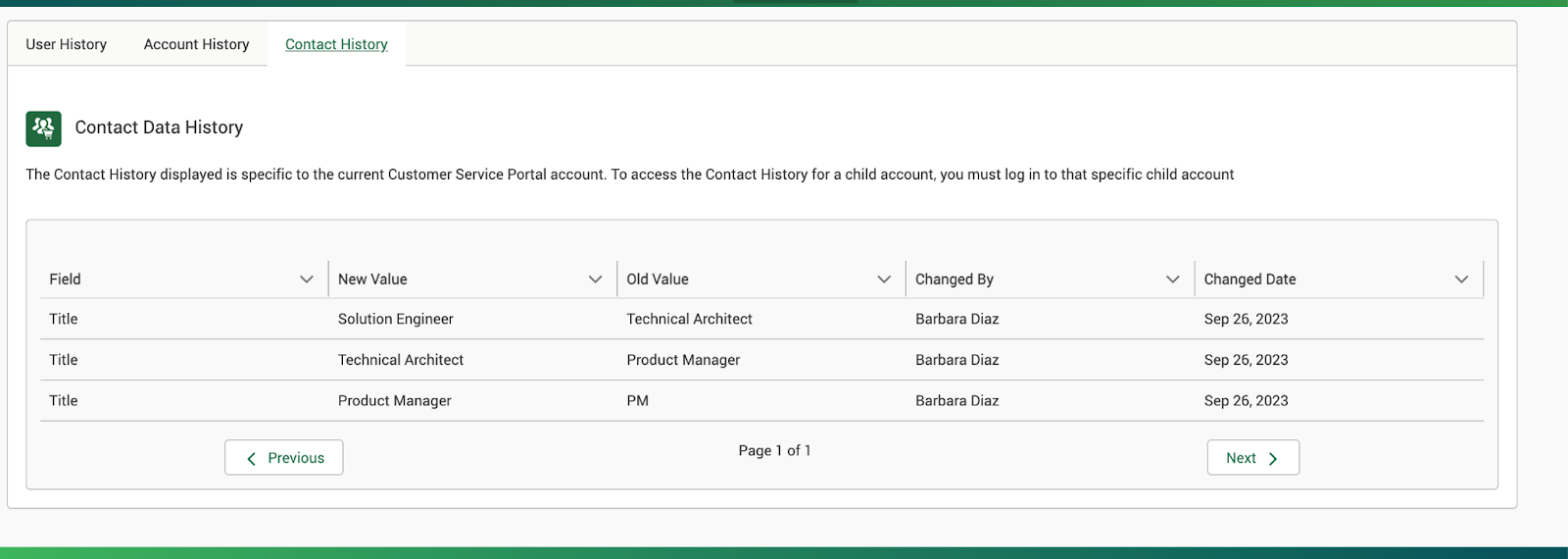
The Contact Data History details page contains a change log of the Salutation, First Name, Last Name, Title, Department, Company, Phone, Mobile Phone, Email, and if the respective contact was marked as Left Company or not. In the Contact Data History section you can see the new value, the old value, the date, and the owner of the change.
Accessing your account details
To access your account details:
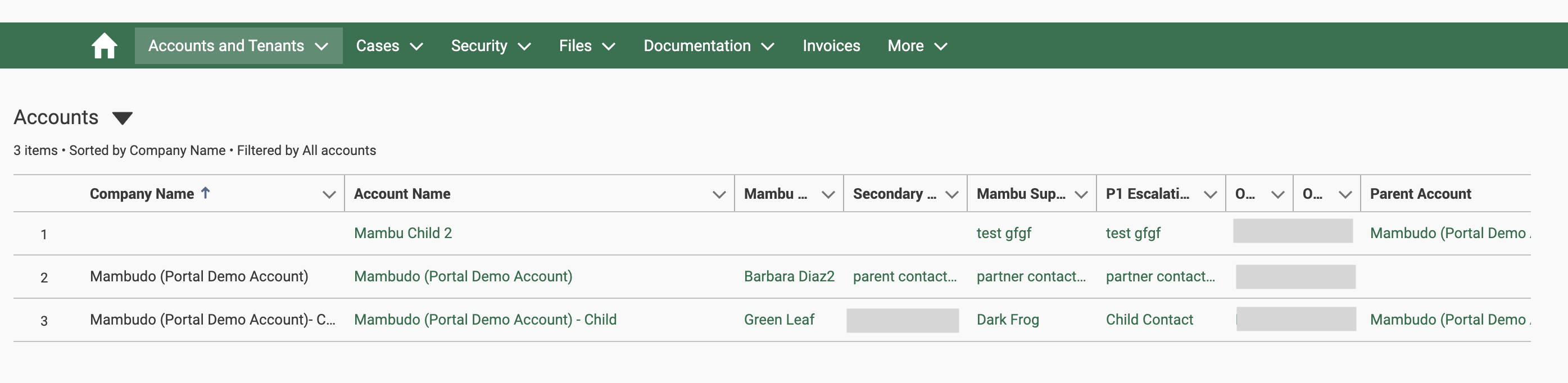
- On the navigation bar, select Accounts and Tenants and then Accounts Information.
- On the accounts overview page, select the Account Name for the account you want to view information for.
You can only view accounts on the accounts overview page that you have permissions to view.
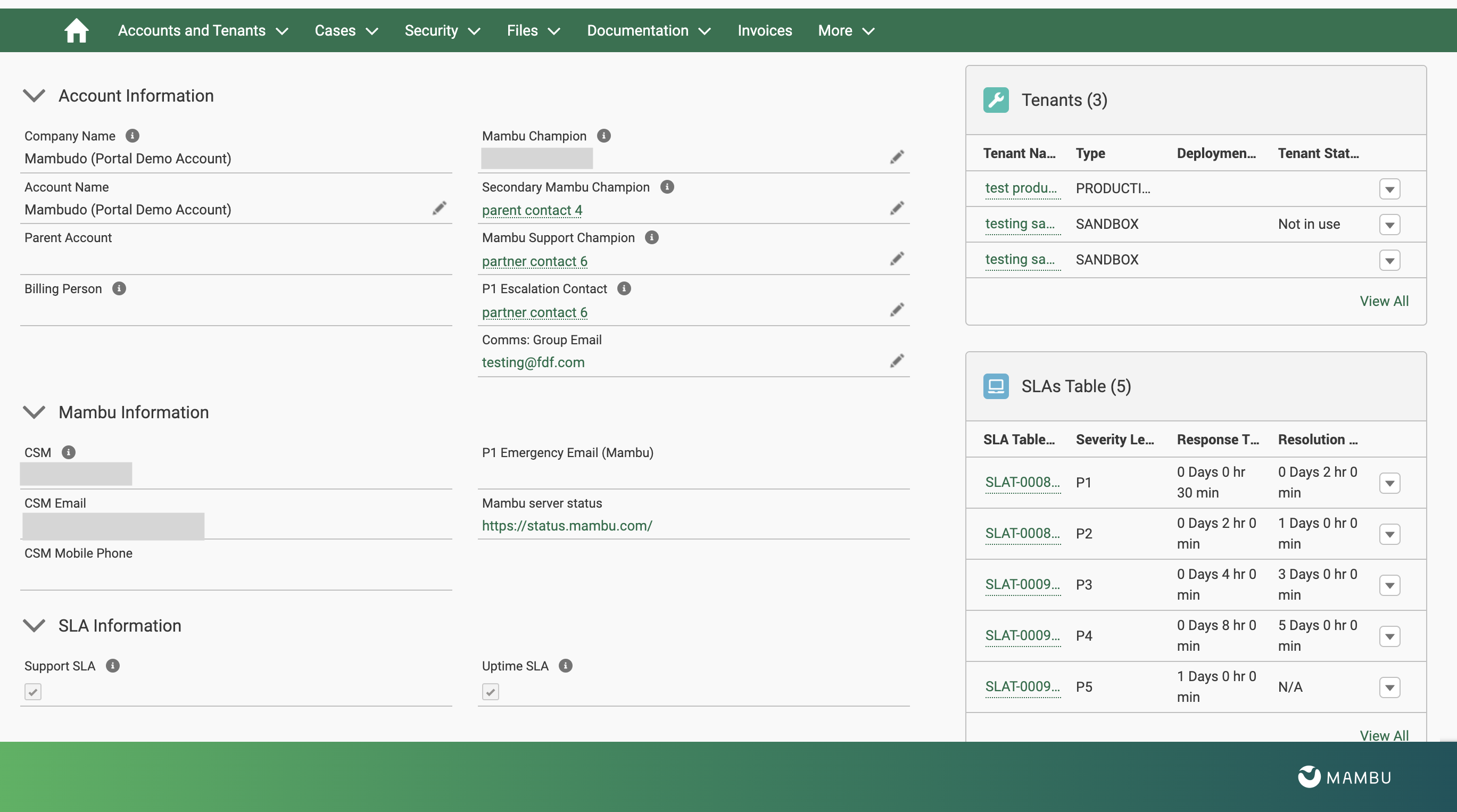
The account details page displays:
- Your account information, including contact details for your Mambu Champions.
- Mambu information, including contact details for your Customer Success Manager.
- Links to your production and sandbox tenants.
- Information about your SLAs.
Editing account information
In the Account Information section of the Accounts Details Page, you can edit information that has the Edit icon next to it.
Accessing tenant information
The Tenants section lists your production and sandbox tenants. You can access it under Accounts and Tenants > Tenants
Select View All to go to the tenants overview page.

If you select a production tenant, you will go to the production tenant detail page and see relevant information and Tenant Metrics.
If you select a sandbox tenant, you will see go to the sandbox tenants detail page and see relevant information and the Sandbox Management options. For more information, see Sandbox Management below.
Accessing SLA information
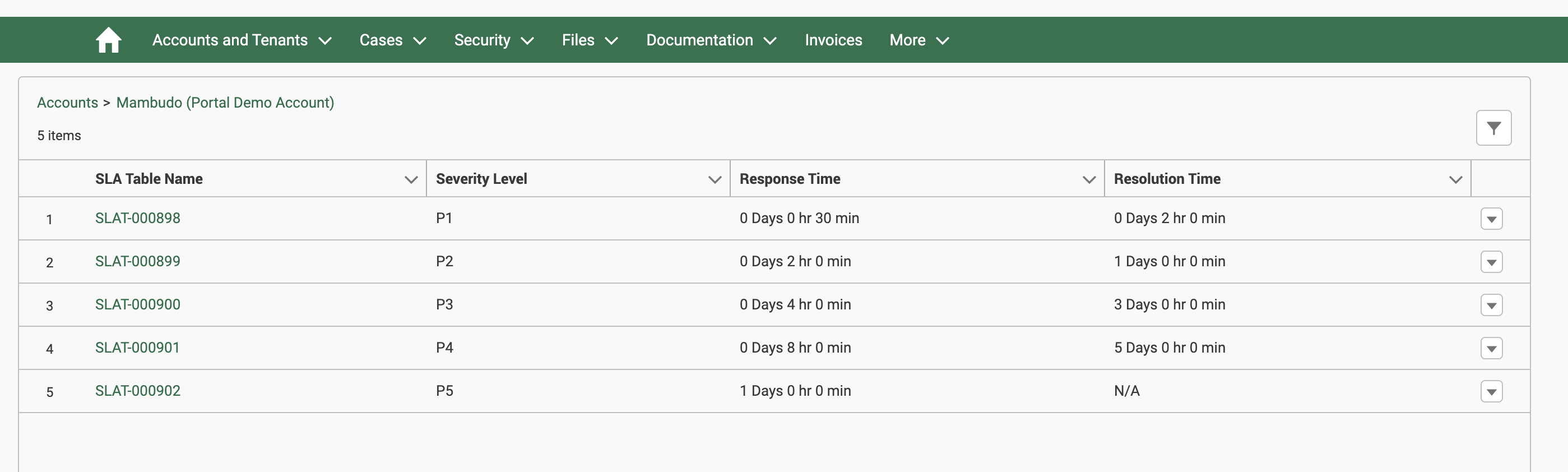
In the SLA Information and SLAs Table sections you can view information about your SLAs.
Select View All in the SLAs Tables section to go to the SLA overview page.
Sandbox Management
A Mambu sandbox is a testing environment where you can test configurations, updates, and new products before making them available to your clients in your production tenant. For more information, see Sandbox.
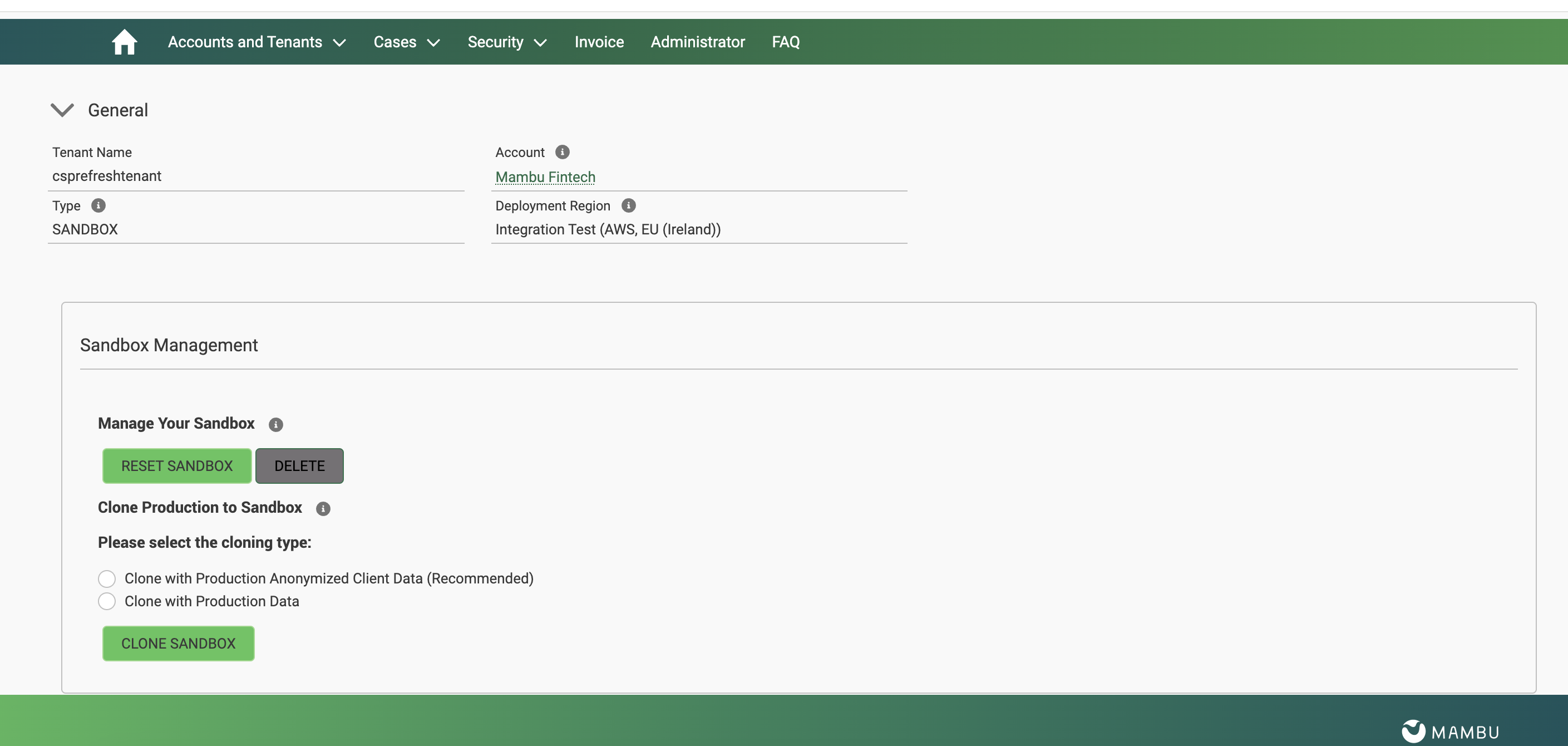
Sandbox management allows you to:
- Reset a sandbox.
- Clone production to sandbox.
- Delete sandbox.
To access Sandbox Management in the Custom Service Portal, on the navigation bar, go to Accounts and Tenants, then go to the Tenants section and select any sandbox tenant.
Cloning production to sandbox
There are two options available for cloning production data to your sandbox: Clone with Production Anonymized Client Data and Clone with Production Data. These two options are described below.
To clone production to sandbox:
- In the Sandbox Management section, under Clone Production to Sandbox, select the type of data you would like to clone with. The two options are Clone with Production Anonymized Client Data (Recommended) and Clone with Production Data.
- Select Clone.
For security and compliance reasons, when you clone your production data to sandbox, API keys are not copied over. You must create new API keys for your newly cloned sandbox environment. For more information, see API Consumers - API keys.
Clone with Production Anonymized Client Data
When production data is cloned to your sandbox using this option, all the client-identifiable data is either anonymized or deleted. This is the default selection.
The rules governing whether data is anonymized or deleted are based on the GDPR Article 17.
For more information on how data is anonymized or modified when cloning in this way, see Sandbox - Client data anonymization.
Clone with Production Data
When production data is cloned to your sandbox using this option, all settings and live data of the production tenant are replicated. Documents and attachments are not copied from one environment to another.
This option may not be compliant with data handling regulations and requirements. If you select this option, it is fully your responsibility to ensure that you are in compliance with all applicable laws and regulations.
Duration
How long it takes to create a sandbox depends on the amount of data you are cloning.
For an empty sandbox, you will see a message confirming that the sandbox has been successfully created in a few seconds.
If you select Clone with Production Data and Clone with Production Anonymized Client Data (Recommended), this might take from a few minutes for smaller tenants up to several days for tenants with over 100Gb of data.
For the duration of the cloning process, the target sandbox will not be available. The initial data available on the sandbox will be deleted as part of the cloning process, and replaced with the cloned data from production.
Deleting a sandbox
To delete an existing sandbox and create a new one, simply refresh the sandbox. See Sandbox Management above.
To delete a sandbox without creating a new one:
- In the Sandbox Management section, under Manage Your Sandbox, select Delete.
- Select OK.
If you encounter any issues creating, cloning, or deleting a sandbox, please contact us through Mambu Support.
Invoices
You may view the invoices provided your user type has access to this feature. For more information, see User types above.
To view invoices, either:
- In the navigation bar, select Invoices, or,
- On the homepage, select Invoice.
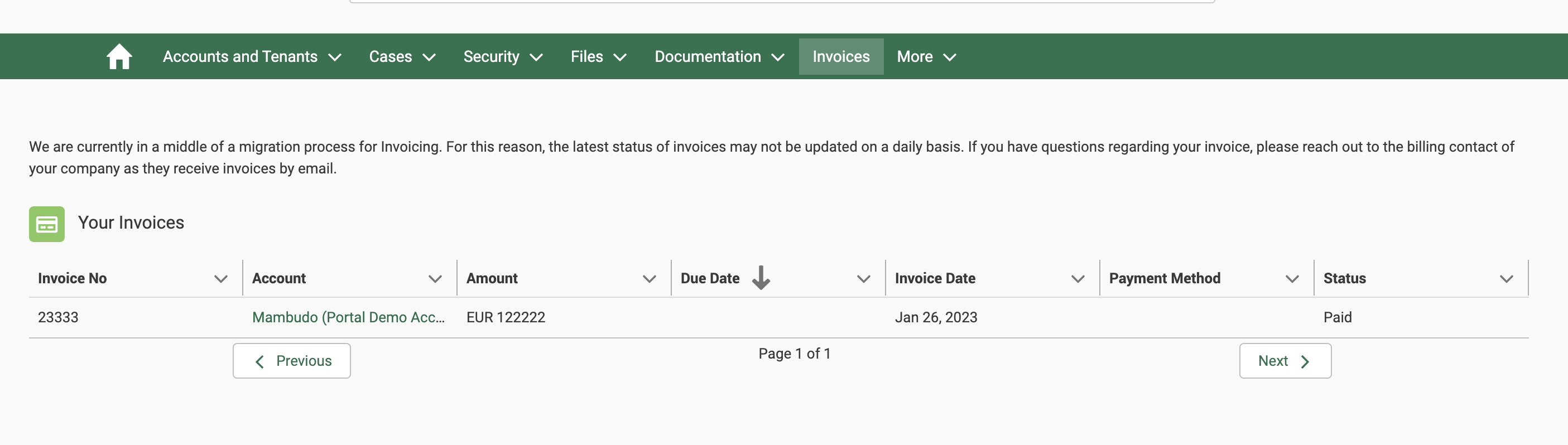
You can use the table headings to sort the invoices.
Invoices are sent by email to the billing contact of your organization. If you require information about an invoice that is not available on the Customer Service Portal, please reach out to the billing contact of your organization.
The status of invoices on the Customer Service Portal may be delayed. If you require the most up-to-date status of an invoice, please contact us through Mambu Support.
Accessing Files
To access documents that Mambu makes available for you, in the navigation bar, select Files > All Files.
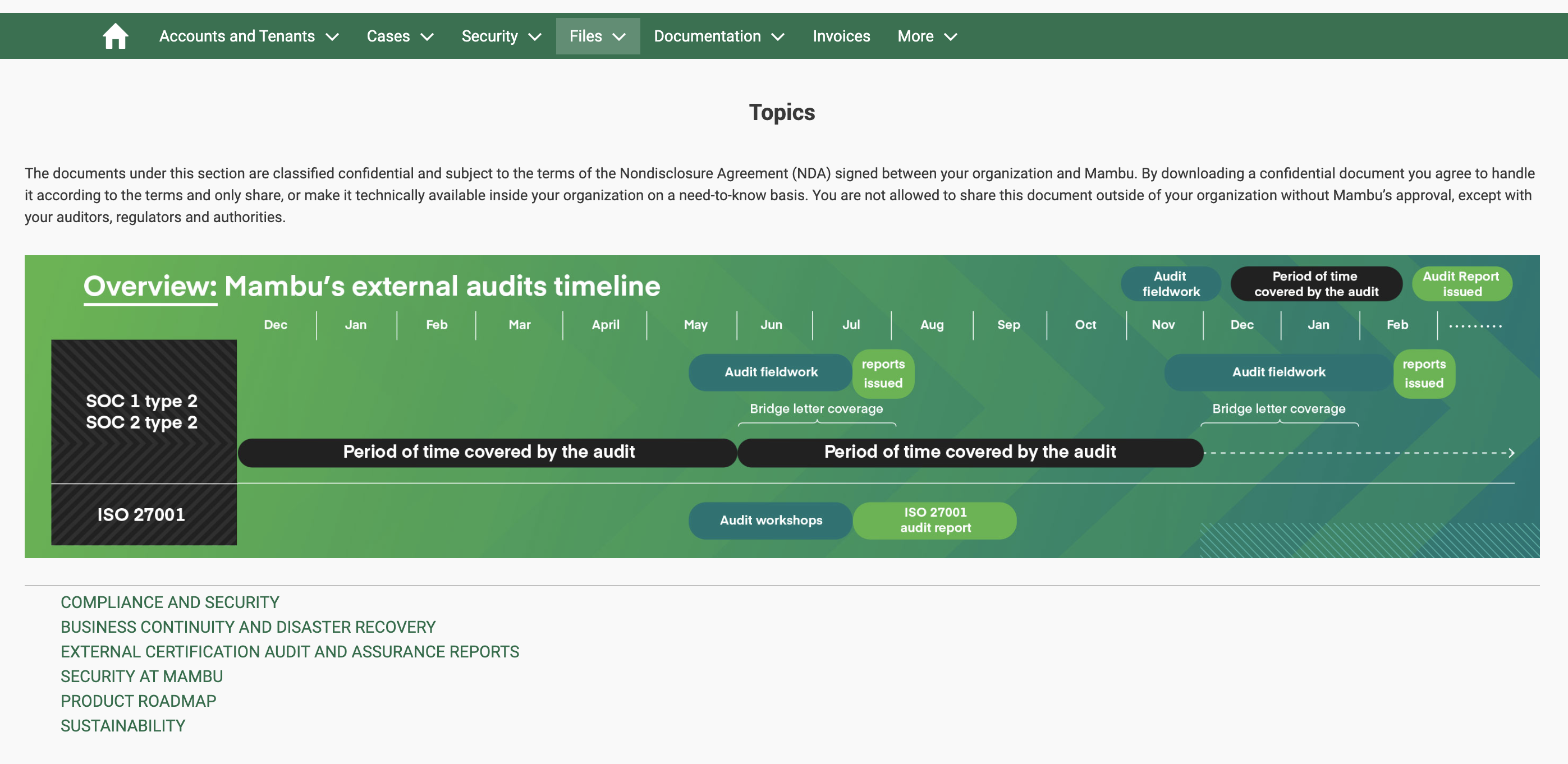
You can access Sustainability Reports, which provide visibility into the climate impact of your cloud consumption in the past year, by selecting Files > Sustainability.
You can access the Product Roadmap, which provides insights into Mambu deliverables, by selecting Files > Product Roadmap or through the home page, by selecting Product Roadmap.
Providing feedback
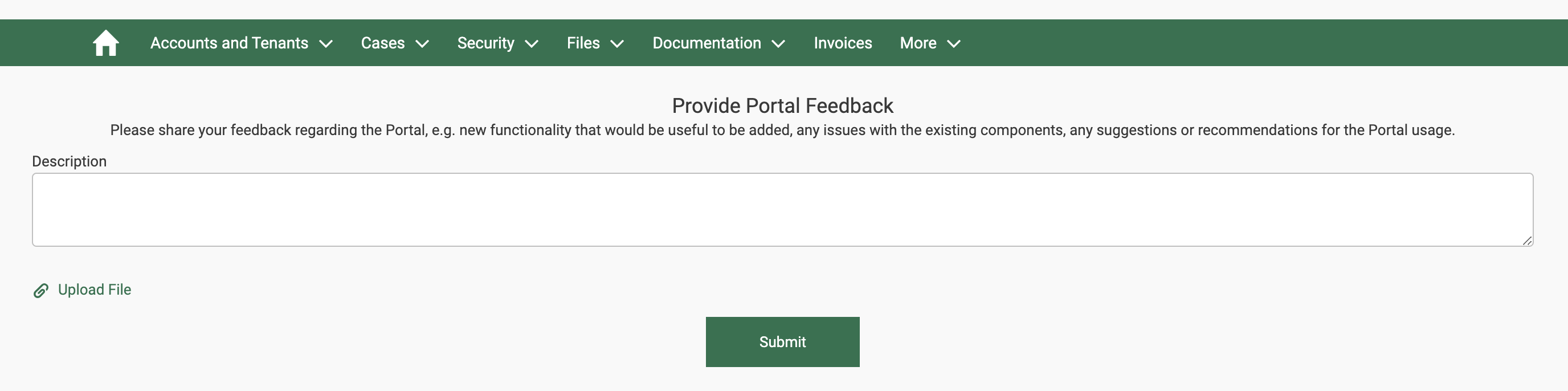
To provide feedback to our team:
- On the home page, select Portal Feedback.
- In the Description, enter any feedback. Optionally, select Upload File to add any supporting documents.
- Select Submit.
Mambu and customer contacts
Contacting Mambu
| For | Contact |
|---|---|
| Any support question | Mambu Support and Ticket Portal |
| Escalations, feedback, or topics outside regular support | Your Customer Success Manager. Contact details are on your account details page in the Customer Service Portal. |
| Billing questions | billing@mambu.com |
| Service status and incidents | status.mambu.com - select Subscribe to Updates to receive them by email |
| Security updates and vulnerabilities | securityupdates.statuspage.io - select Subscribe to Updates to receive them by email |
Your contacts at Mambu
Before you go live, share the following contacts with your Customer Success Manager or Delivery Manager. Keep them up to date afterwards - you can see and edit them on your account details page in the Customer Service Portal.
Each contact should be a named individual rather than a shared alias, with the exception of the comms group email.
| Role | Purpose | What Mambu sends | Special access rights |
|---|---|---|---|
| Mambu Champion | Your primary point of contact for everything related to Mambu. Fully trained on the platform, and the person who filters internal queries before they reach us. | Product updates, breaking change notifications, outbound cases, security vulnerabilities, payment reminders | Approves Technical Authorization Changes and approves access to the Customer Service Portal |
| Secondary Mambu Champion | Stands in for the Mambu Champion, with the same responsibilities. | Same as Mambu Champion | Same as Mambu Champion |
| Support Champion | Owns case management on your side. The person we reach out to on support topics and who coordinates questions going to our support team. | Outbound support cases, breaking change notifications, product updates | - |
| Security Champion | Your point of contact for security communication. | Security vulnerabilities, anything published on the security status page, outbound security communication | - |
| P1 Escalation contact | Informed automatically when a P1 incident is detected, and the contact we reach during an escalation. | Outbound cases for P1 incidents | - |
| Billing contact | Owns billing topics on your side. Invoices are sent to this contact. | Invoices, payment reminders, disputes | - |
| Comms group email | A distribution list on your side for broader awareness of Mambu communications. | Product updates, breaking change notifications | - |
Changes to the Mambu Champion, Secondary Mambu Champion, Support Champion and P1 Escalation Contact are tracked. To review them, go to More > Administrator > Account History. See Account History.