Manual Email Notifications
This page describes how to manage manual email notifications. For more information about email notifications in general, see Notifications Overview.
Manual email notifications let you send an email to communicate with individual clients or groups at any moment. You can send from a client or group profile, or from a related loan or deposit account section.
You must configure SMTP settings before you can use manual email notifications. See Email setup.
When sending a manual email, you can either select a template or compose the message directly. Templates support placeholders and advanced formatting.
Creating manual email notification templates
To create or edit manual email notification templates, you must have the following permissions:
- Create templates: Create Templates (
CREATE_COMMUNICATION_TEMPLATES) and View Administration Details. - Edit templates: Edit Templates (
EDIT_COMMUNICATION_TEMPLATES) and View Administration Details.
To create a manual email notification template:
- On the main menu, go to Administration > Templates > Emails.
- Select Add Template.
- Enter the required information (see field descriptions below).
- Select Save Changes.
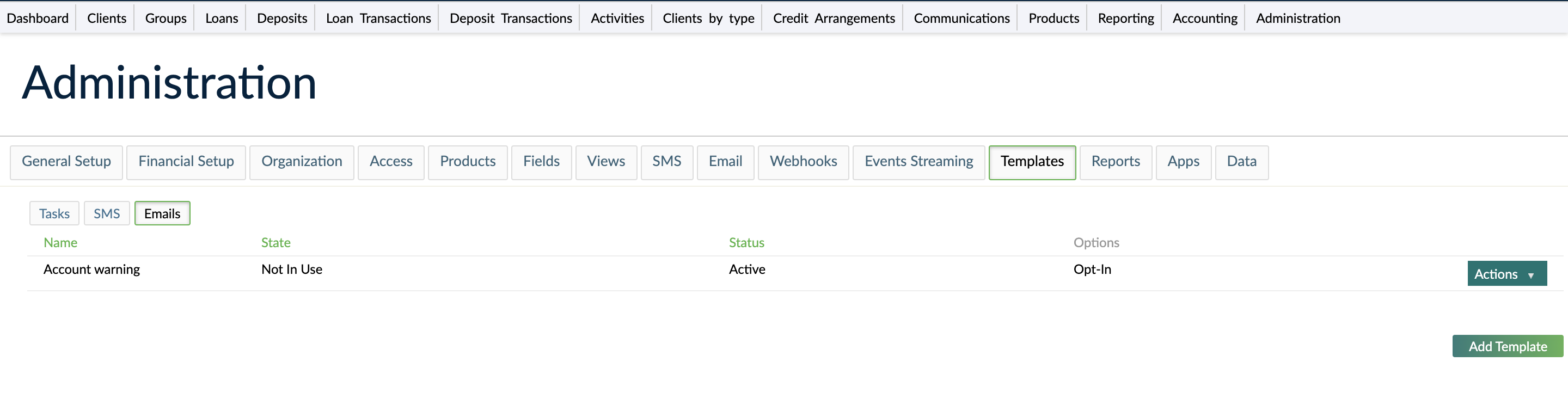
Fields for manual email notification templates
The following fields are available when creating manual email notification templates.
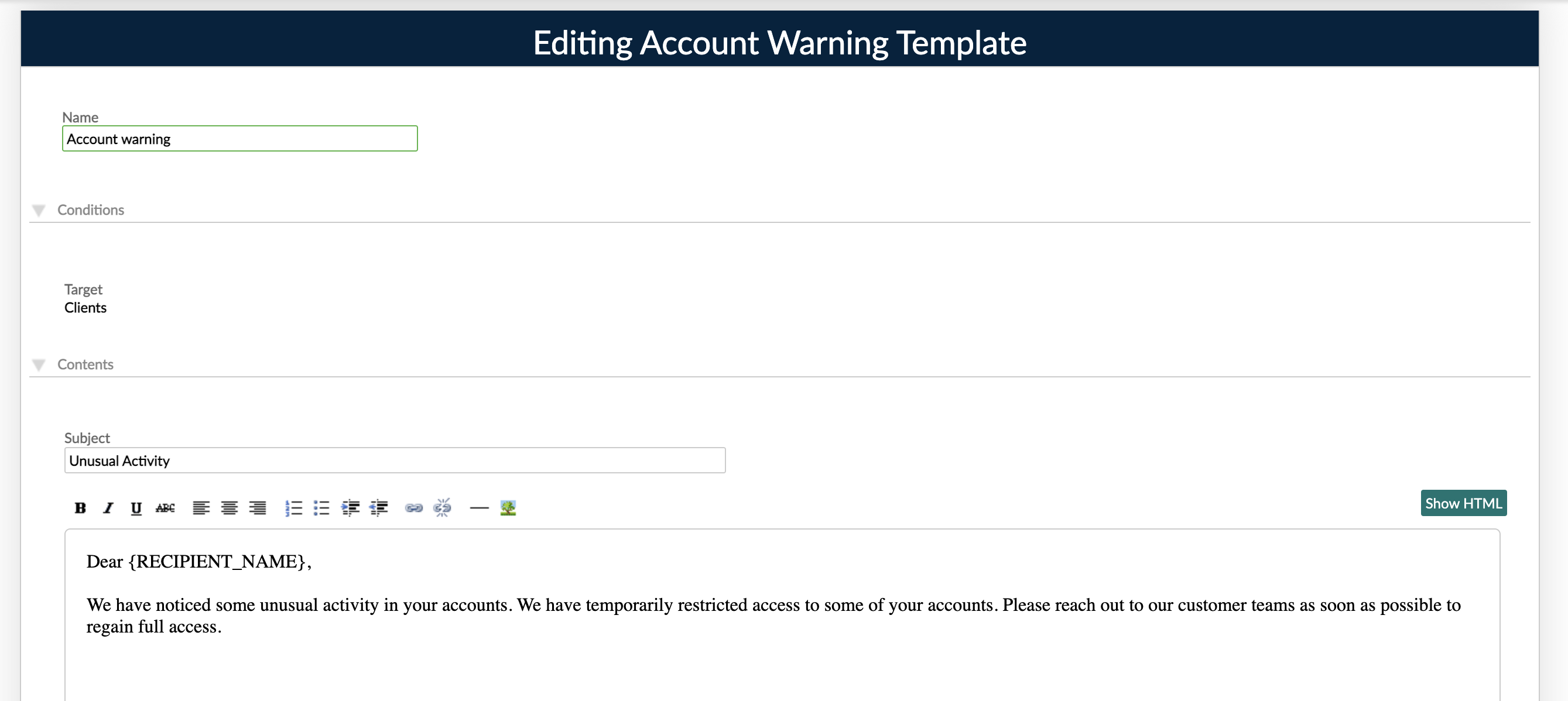
Email name
The template name must be unique and a maximum of 255 characters. Leading and trailing spaces are removed automatically.
Email target
The target indicates what entity the notification relates to. For manual email templates, the available targets are:
- Client
- Group
- Loans
- Savings
The target type determines both:
- Which placeholders are available in the template, and
- Where the template is shown in the UI.
For example:
- When sending from a client profile, you see Client templates.
- When sending from a group profile, you see Group templates.
- When sending from a loan account, you see Loans templates.
- When sending from a deposit/savings account, you see Savings templates.
Note: Even when sending from an account section, the email is addressed to the account holder’s email address (client or group).
Email contents
The email contents consist of a subject line and the message body.
- The subject can include text and placeholders. The subject has a maximum length of 255 characters. We recommend keeping subjects around 50 characters for better preview and deliverability, but this is a guideline, not an enforced limit.
- The body can include text, images, links, and placeholders when using a template.
When you create or edit a template, you can work with:
- A rich text editor, and
- An HTML editor.
For more information on how to use these editors, see Content Editors.
When you compose a message directly in the send dialog (without selecting a template), a rich text editor is available.
Sending manual email notifications
You can send manual emails via the Mambu UI or via API. For the API, see the Communications Messages endpoint: Communications.
To send manual email notifications, you must have the Send Manual Email (SEND_MANUAL_EMAIL) permission.

To send a manual email notification:
- Open the profile of the client or group you want to contact. Alternatively, open a related loan or deposit account and use the Send action there.
- Select Send > Send Email. The option appears only if:
- SMTP settings are configured for your organization, and
- The client or group has an email address on their profile.
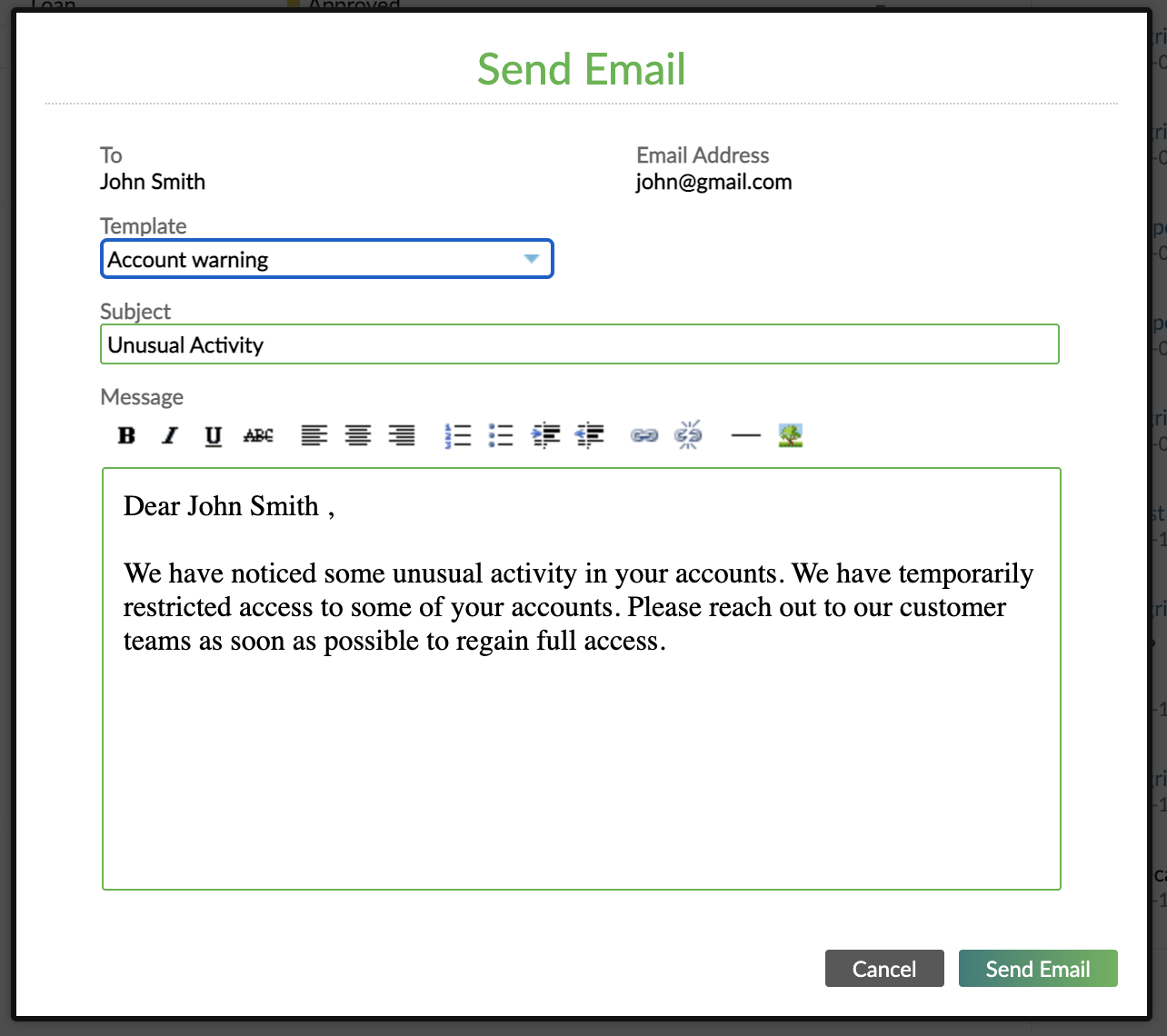
- In the Send Email dialog, either:
- Select a template (filtered based on the context: Client, Group, Loans, or Savings), or
- Compose a message directly.
- If you select a template:
- You can adjust the contents before sending if you have the Edit Templates permission.
- If you do not have the Edit Templates permission, the template content is read-only.
- Select Send Email.
If you want to include styling or custom HTML, use an email template. For more information, see Content Editors.
API parity
The Communications Messages API supports sending manual emails with similar behavior to the UI, including permission checks and template/target validation. Ensure your API user has the SEND_MANUAL_EMAIL permission and that SMTP settings are configured for your organization.
Troubleshooting
-
The Send Email button doesn’t appear Check that:
-
SMTP settings are configured for your organization.
-
The client or group has an email address on their profile.
-
Your user role has the
SEND_MANUAL_EMAILpermission. -
Message not sent Check:
-
Your email provider configuration.
-
That the destination email address is valid.
-
If you are using a template, that all required placeholders can be resolved for the recipient.