Custom Views
Custom views are used to configure the Mambu UI, to quickly generate reports, and to filter GET requests with the Mambu v1 API (see Custom Views and API v1 for more information).
We refer to a custom view as either a view or a custom view, these terms are interchangeable.
Examples of custom views include:
- Listing all the clients that are in an active state.
- Listing all loan accounts that are 90 days in arrears.
- Listing all the withdrawal transactions higher than USD700,000 - to review them for reporting purposes.
There are two kinds of custom views:
- Temporary custom views, which can be seen by selecting the View menu in the top bar and using the quick lookup.
- Saved custom views, which are assigned to a menu item and are accessible through the navigation bar.
Mambu comes with some predefined saved custom views that are available under predefined menu items.
For more information about creating and managing menu items, see Menu Items. For an example of how to use the menu items and custom views features together to create customizable UI sections, see Menu Items and Custom Views Showcase.
You may only view and manage custom views for which you have the appropriate permissions. For more information on the permissions for each custom view type, see Menu item types and permissions. For more information on permissions in general, see Permissions.
Temporary custom views
Temporary custom views are used for a one-time look up. They offer fewer actions than saved custom views; for example they cannot be saved, copied, deleted, or added to favourites. However, you can export temporary custom views to Excel.
Creating a temporary custom views
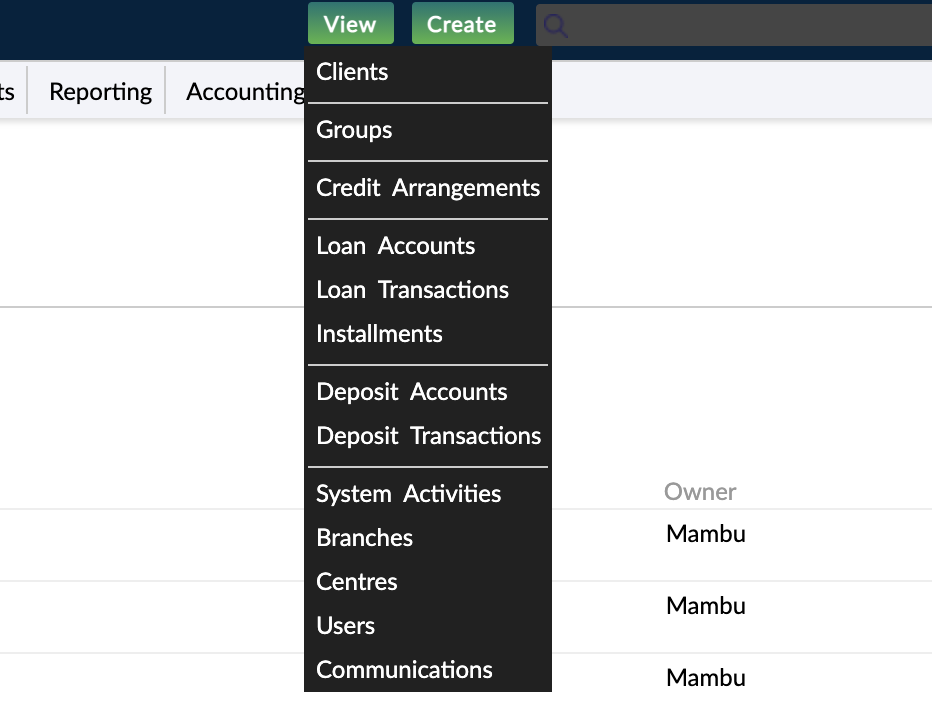
To create a temporary custom view through quick lookup:
- In the top bar, select View.
- Select the entity for which you would like to create a custom view.
- In the Quick Lookup dialog, enter all the necessary information. For more information on the available fields, see Fields for custom views.
- Select Apply.
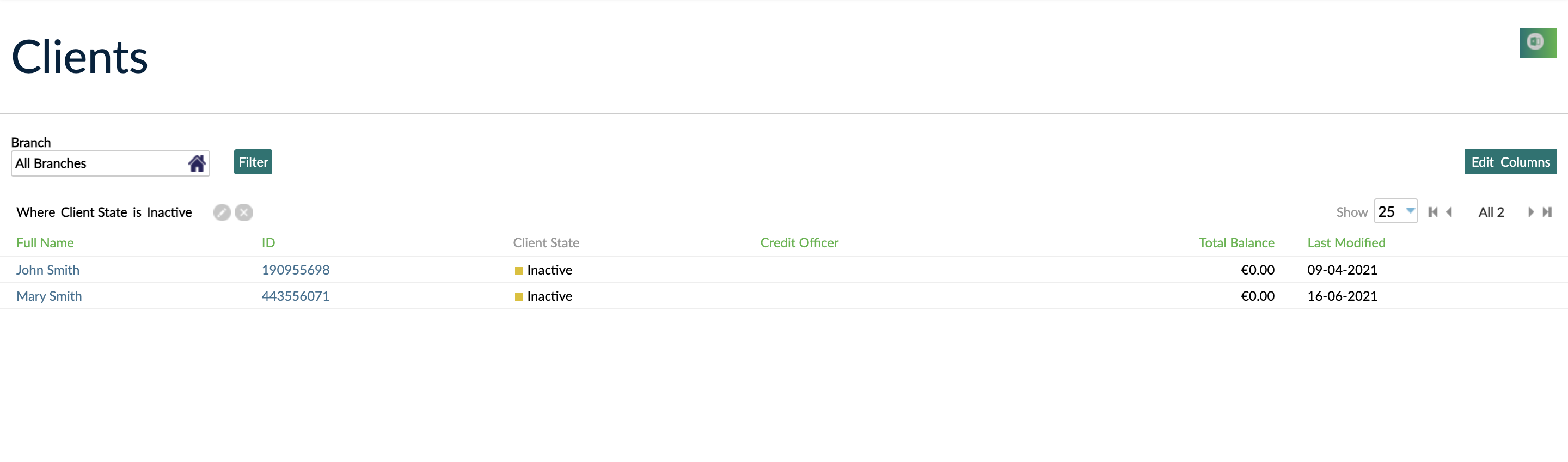
Editing a temporary custom view page
To edit filters directly on the custom view page:
- In the top left-hand corner of the custom view page, select Edit .
- In the Custom Filter dialog either edit the existing filters or select Add Filter to add an additional filter.
- Select Apply.
To edit columns directly on the custom view page:
- In the top right-hand corner of the custom view page, select Edit Columns.
- In the Edit Custom View Fields dialog, make any of the necessary changes.
- Select Apply Changes.
Saved custom views
User types and saved custom views
Only an administrator can view, create, edit, and save custom views.
Administrators are users that have the Administrator type assigned to them. For more information, see Creating a User - User Rights.
Regular users
As a regular user, you may only see custom views that you have created, that have been set by an administrator to be viewable by all users, or that have been set by an administrator to be viewable by regular users with a role that you have been assigned.
Custom views that you create are viewable by you and any administrator. You can only edit or delete the custom views you have created. Regular users do not have access to the usage rights settings of a custom view.
To access saved custom views, you may visit the Manage My Views page in two ways:
- Select your profile name in the top right-hand corner of the top bar and then select My Views, or
- Hover over the navigation bar until Settings is revealed and select it.
Visiting Manage My Views through profile name:
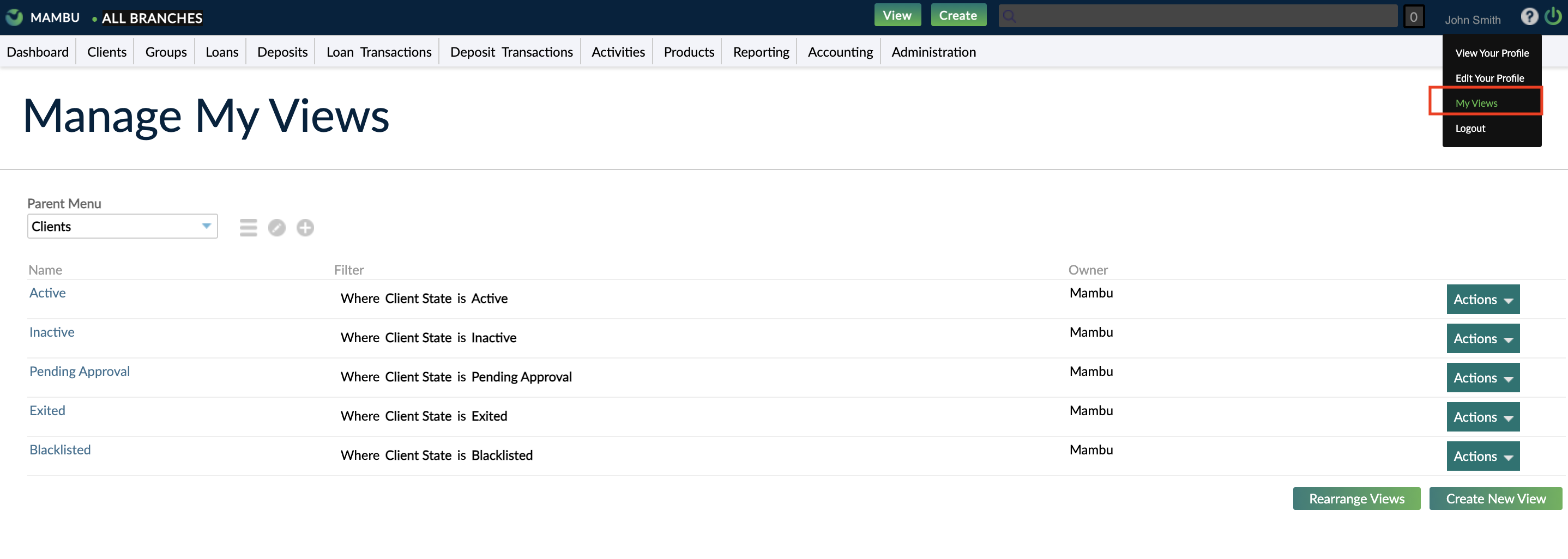
Visiting Manage My Views through cog in navigation bar:

Administrators
If you are an administrator, you have access to the usage rights settings of a custom view. Here, you may set custom views to be either viewable for all users, or only viewable by users who created the custom view as well as the viewers who have been assigned the relevant roles. For more information, see Usage Rights.
As an administrator, under the Administration menu item, you have access to a Views tab. This is where you can view, edit, or delete the saved custom views created by other users.
Visiting custom view through administration:
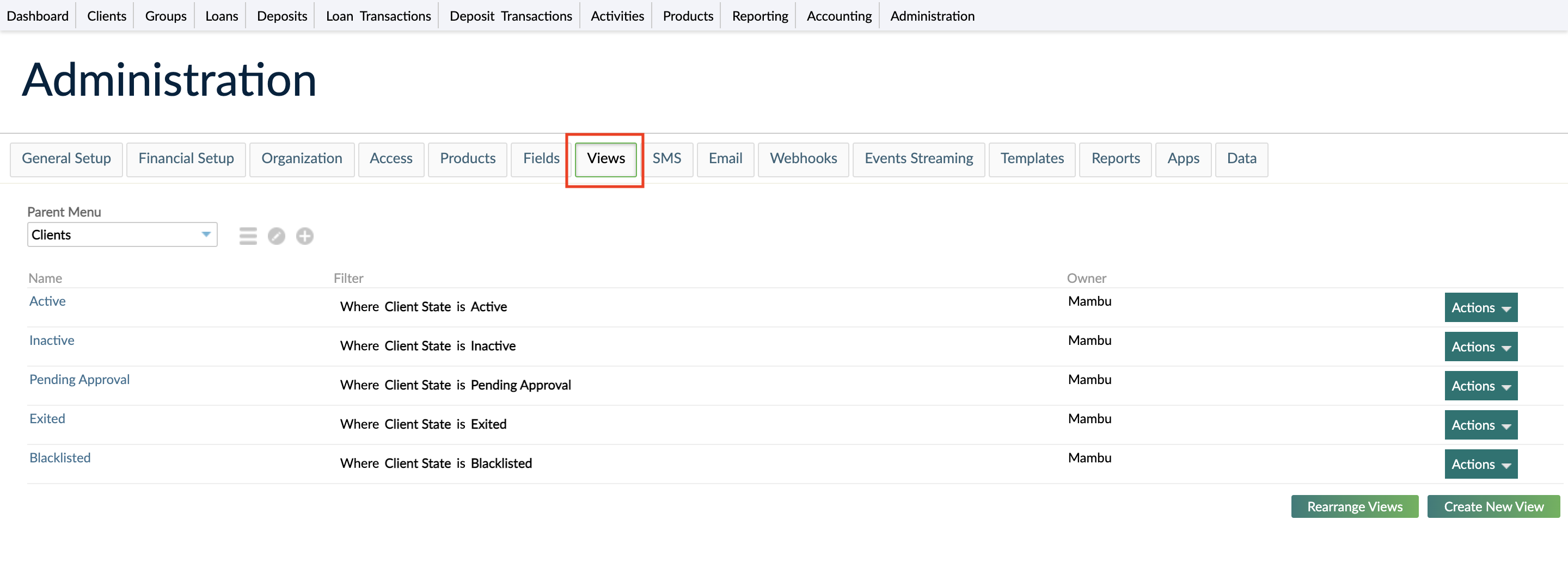
On the Manage My Views page you can only see a list of saved custom views created by your user or that are accessible to all users.
Creating a saved custom view
To create a new custom view assigned to a menu item:
- Hover over the navigation bar until Settings is revealed and select it.
- In the Parent Menu dropdown, select the menu item to which you would like to assign the new custom view.
- Select Create New View.
- Enter all the necessary information. For more information on the available fields, see Fields for custom views.
- Select Save View.
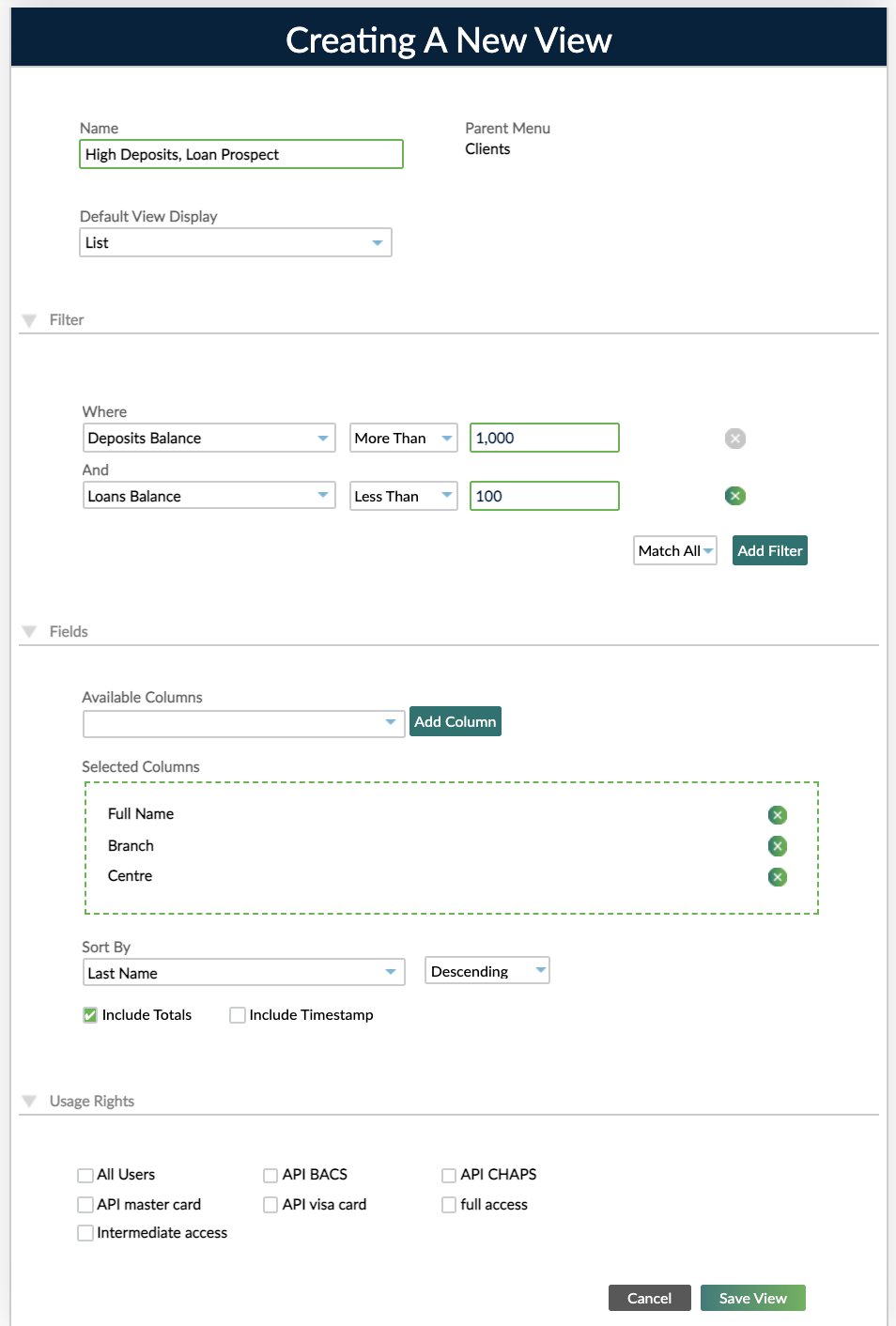
Fields for custom views
Default View Display for saved custom views only
The Default View Display dropdown allows you to choose the default view mode that the custom view will open in. The two available options are List and Detail. List is the default option.
You can later change the view mode on a saved custom view page by selecting either Custom View Detail or Custom View List to toggle to the other view mode.
Temporary custom views can only be viewed in list view mode.
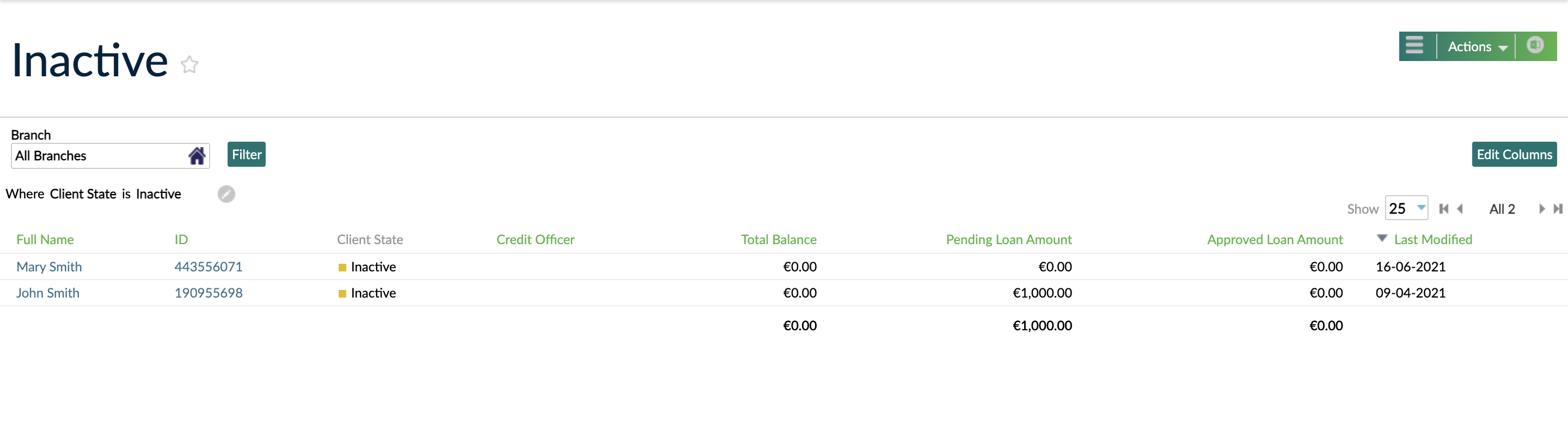
List view mode
The list view mode shows the information in rows and columns. It gives you all your selected columns, fully sortable with totals for quick data analysis, sorting, and reporting. It is represented by Custom View List on the custom view page.
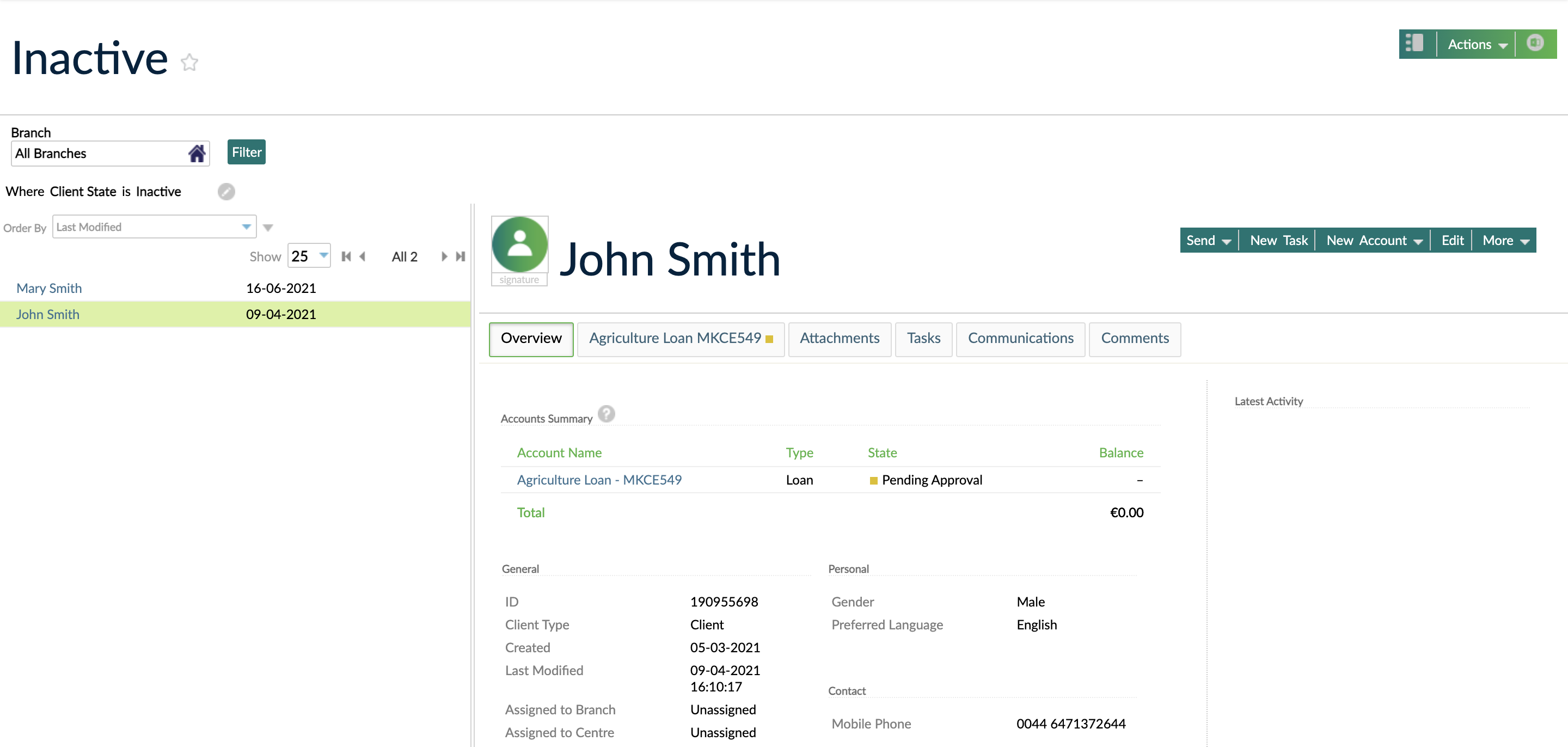
Detail view mode
The detail view mode shows a list without columns, but allows opening each object individually without leaving the view. It allows you to see your clients and accounts in context to the custom view and other accounts: edit fields, disburse loans, review accounts, and much more without having to open new tabs or lose context of what you’re looking at. It is represented by Custom View Detail on the custom view page.
Filters
In the Filter section you can define multiple filter conditions. Select Add Filter to add an additional filter. Select Delete to remove a filter.
In the dropdown, selecting Match All displays results that match all the conditions. Selecting Match Any displays results matching at least one of the conditions. Filters can be based on native fields or custom field definitions.
For different types of fields there are different filter conditions available:
- Selection fields allow a single value to be selected per condition.
- Date fields allow for date ranges or specific dates.
- Alphanumeric fields allow for "starts with" or "equals" conditions.
Fields
In the Fields section, you define the columns of information displayed in the view. Both grouped and standard custom field definitions are available.
Temporary custom views have default fields and you may also add additional fields.
Saved custom views have no default fields, so you must select fields to view any information.
To add fields, search for the desired field in the Available Columns dropdown and select the column name.
To remove columns select Delete beside the column name.
If you do not select any fields, then no results will be displayed in rows on the custom view page - even if your custom view retrieves results.
If the retrieved results have no data to display for the selected fields, empty rows will be shown on the custom view page.
The Sort By dropdown allows you to select the field to sort results by and also whether to sort in ascending or descending order.
Select the Include Totals checkbox to add a total to any field that is numeric.
Select the Include Timestamp checkbox to add a timestamp to any date fields.
Usage Rights
The Usage Rights section of the Mambu UI is only available for saved custom views managed by admins. For more information, see User types and saved custom views.
Access is controlled at the role level, not at the user level. For more information, see Access managed by role.
If you select the All Users checkbox, then all roles will be selected and any user that has the appropriate permissions assigned to them either directly or through a role will have access to the custom view. For more information on the different permissions necessary for the different custom view types, see Menu item types and permissions.
If you do not select the All User checkbox, then users will need to be assigned a role with appropriate permissions to allow them access to the custom view. Users will not have access to the custom view if they have the permissions directly assigned to them.
Rearranging custom views
To rearrange the custom views assigned to a particular menu item:
- Hover over the navigation bar until Settings is revealed and select it.
- In the Parent Menu dropdown, select the menu item to which the custom view you would like to rearrange are assigned.
- Select Rearrange Views and then drag and drop the views in the desired order in the Arrange Views dialog.
- Select Save Changes.
Editing a saved custom view
You can edit a custom view either by opening the Edit View dialog and altering the information in the available fields. Alternatively, you can go on the custom view page and use the filter and column options to edit the view.
The saved custom views you can edit depend on your user type. For more information, see User types and saved custom views.
To edit a custom view:
- On the main menu, go to Administration > Views.
- Using the Parent Menu dropdown, select the menu item you would like to edit.
- In the list of views, find the one you want to edit and, on the right-hand side of the row, select Actions > Edit.
- Make any necessary changes. If you use a non-English display language, enter the name of the view in your language.
- Select Save View.
Editing filters and columns on a custom view page
To edit filters directly on the custom view page:
- In the top left-hand corner of the custom view page, select Edit .
- In the Custom Filter dialog either edit the existing filter(s) or select Add Filter to add an additional filter.
- Select Apply.
- To either save the changes or reset the view, select Actions in the top right-hand corner, and then select Save Changes or Reset View.
To edit columns directly on the custom view page:
- In the top right-hand corner of the custom view page, select Edit Columns.
- In the Edit Custom View Fields dialog, make any of the necessary changes.
- Select Apply Changes.
- To either save the changes or reset the view, select Actions in the top right-hand corner, and then select Save Changes or Reset View.
Copying a saved custom view
There are two ways to copy a custom view:
- Go to the page that lists all your custom views and find the custom view you want to copy and select Actions > Copy View.
- Visit the custom view page and in the top right-hand corner select Actions > Save View As.
When you copy a custom view, by default (Copy) will be appended to the original name. You can choose to edit this. Also, the custom view will be added to the menu item that the original custom view is assigned to.
Adding a saved custom view to favourites
Adding a custom view to favourites adds the view to the user's dashboard as a favourite view.
Additionally, any favourite views will have the number of items (clients, loans, and transactions) displayed next to it.
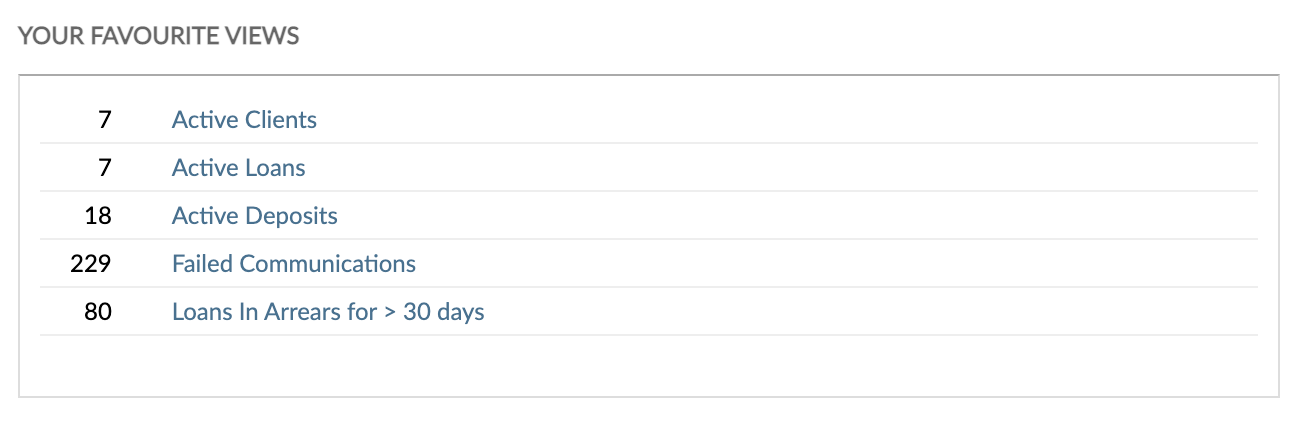
There are two ways you can add or remove a custom view from favourites:
- Go to the page that lists all your custom views and find the custom view you want to add to favourites, and select Actions > Add to Favourites.
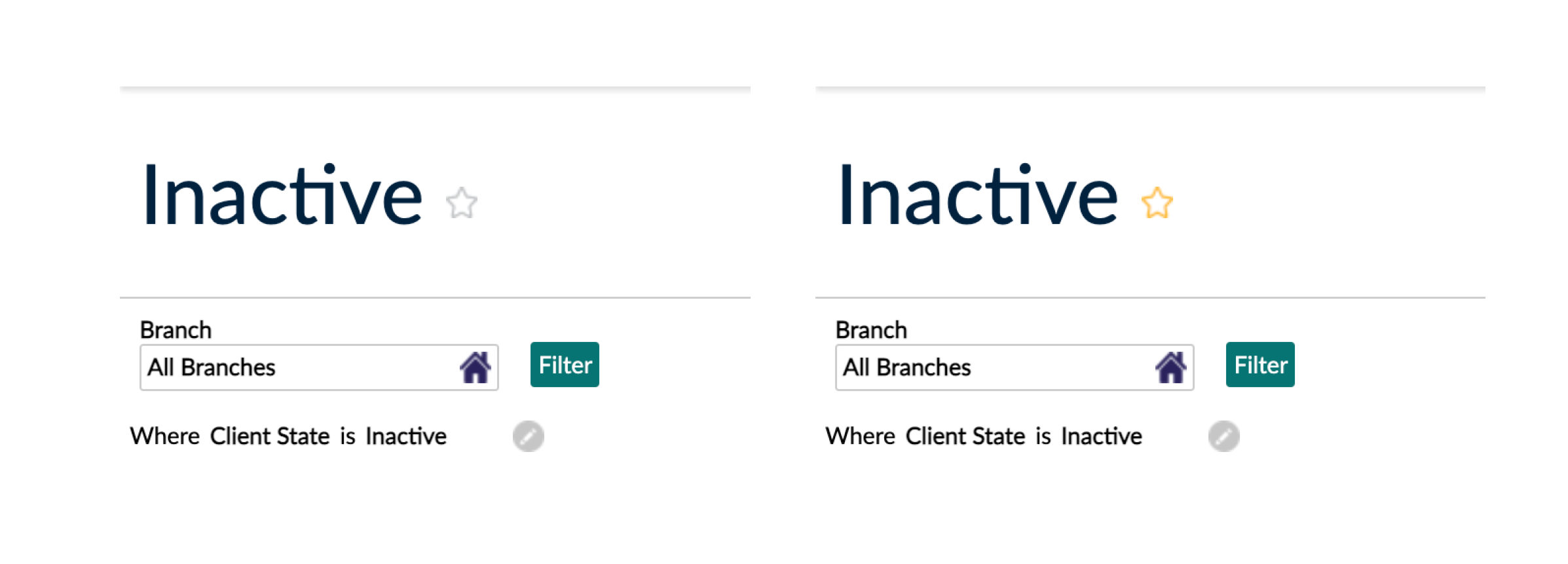
- Visit the custom view page and in the top left-hand corner next to the name, select or unselect the star icon. If the star is highlighted yellow, then it is a favorite view. If it is gray, then it is not a favorite view.
Deleting a saved custom view
The saved custom views you can delete depend on your user type. For more information, see User types and saved custom views.
There are two ways you can delete a custom view:
- Go to the page that lists all your custom views and find the custom view you want to delete and select Actions > Delete.
- Visit the custom view page and in the top right-hand corner select Actions > Delete View.
Custom views and language settings
You may configure the Mambu UI to display text in a language other than English by editing your Mambu Display Language. However, customized menu items and custom view tabs will not be translated, as they depend on the values you enter.
As a result, it is best practice to use the language that most or all of your Mambu users are likely to use when setting up your custom views. Keep this in mind during planning and implementation.
For more information, see Language Settings.
Export to Excel
All custom views can be exported to Excel to allow for the information to be used in further analysis, reports, or for any other reason.
To export to Excel select Export spreadsheet .
- The maximum number of rows that will be exported to Excel per request is 100,000. Filters can be used to break up extremely large views into smaller, exportable chunks.
- Due to Excel limitations, numbers longer than 15 digits (including the decimal point) will be exported as text format. Manually changing the format from text to number in Excel could result in accuracy loss