Loan Account Attachments
Any loan account can have files (attachments) uploaded in Mambu, for example, scans of documentation required in the loan application process, signed forms, and loan agreements.
Uploading a new document
To upload a document:
- Open the loan account.
- Go to the Attachments tab.
- On the left-hand side of the screen, select Upload Document.
- Enter a relevant name and description.
- Select Choose File > select the file you want to upload > select Open.
- Select Save Changes.
Use the following file types:
- Images - JPEG, PNG, GIF, BMP, TIFF
- Documents - PDF, XML, DOC, DOCX, DOCM, DOT, DOTX, DOTM, XLS, XLSX, XLSB, PPT, PPTX, ODT, OTT, FODT, PDF, XML, TXT, CSV, PROPERTIES, MSG, TIF, ZIP, RTF, XLSM, ODS, ODP, EML, EMLX, HTML, MHT, MHTML, XPS, NUMBERS, KEY, PAGES, YAML, JSON, JASPER, JRXML
Don't use:
- XHTML, JS, JSP, PHP, SWF
note
- Obfuscated PDF files will always be rejected, since our anti-virus cannot scan them for malware.
- You cannot upload files without an extension, with multiple extensions, or containing a period in their name.
- You cannot upload empty files.
- Don't use the following characters in the file's name when you upload it to Mambu:
/ > < | : & ? * [ ] # * `
Managing documents
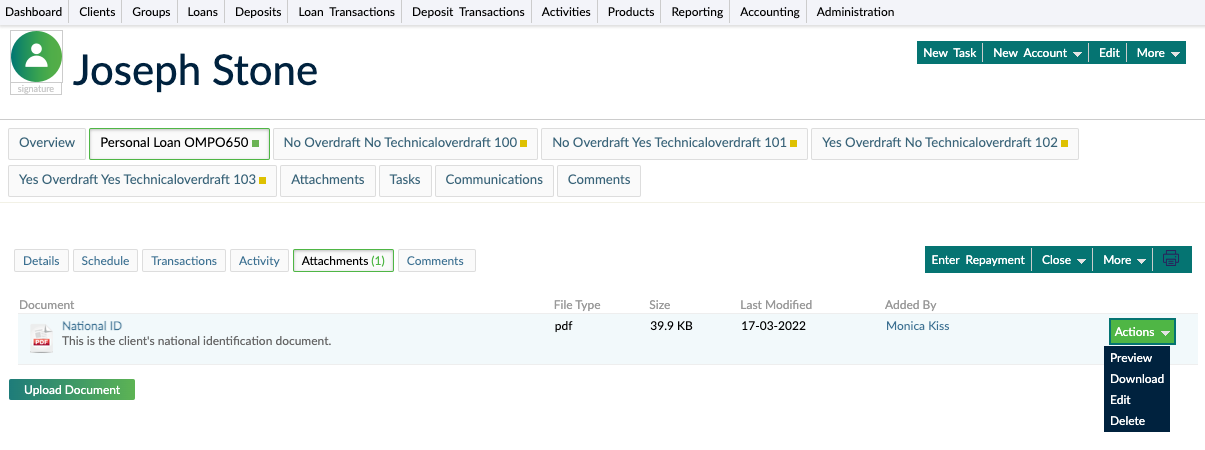
You can make changes to the title and description of the documents, download them to your local machine, or simply delete them.
Previewing documents
To preview a document:
- Open the loan account.
- Go to the Attachments tab.
- In the list of documents, find the one you want to preview and, on the right-hand side of the row, select Actions > Preview.
Downloading documents
To download a document:
- Open the loan account.
- Go to the Attachments tab.
- In the list of documents, find the one you want to download and on the right-hand side of the row, select Actions > Download.
Or, you can click directly on the document name.
Editing documents
To edit a document:
- Open the loan account.
- Go to the Attachments tab.
- In the list of documents, find the one you want to edit and on the right-hand side of the row, select Actions > Edit.
- Make the desired changes.
- Select Save Changes.
Deleting documents
To delete a document:
- Open the loan account.
- Go to the Attachments tab.
- In the list of documents, find the one you want to delete and on the right-hand side of the row, select Actions > Delete.
- Confirm.