Repayment Schedule Options for Dynamic Mortgage and Interest-Only Equal Installment Loans
For more information on editing loan repayment schedules, refer to Repayments Schedule Editing.
The ability to edit repayment schedule options is enabled via the checkboxes in the Loan Product setup screen, under Repayment Scheduling > Repayments Schedule Editing.
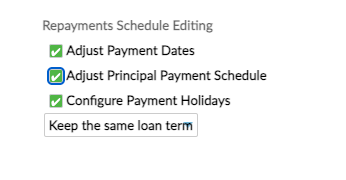
To modify repayment schedules for a mortgage product, navigate to the Loan Account screen > More menu > Edit Schedule. This will open the Editing Repayment Schedule screen.
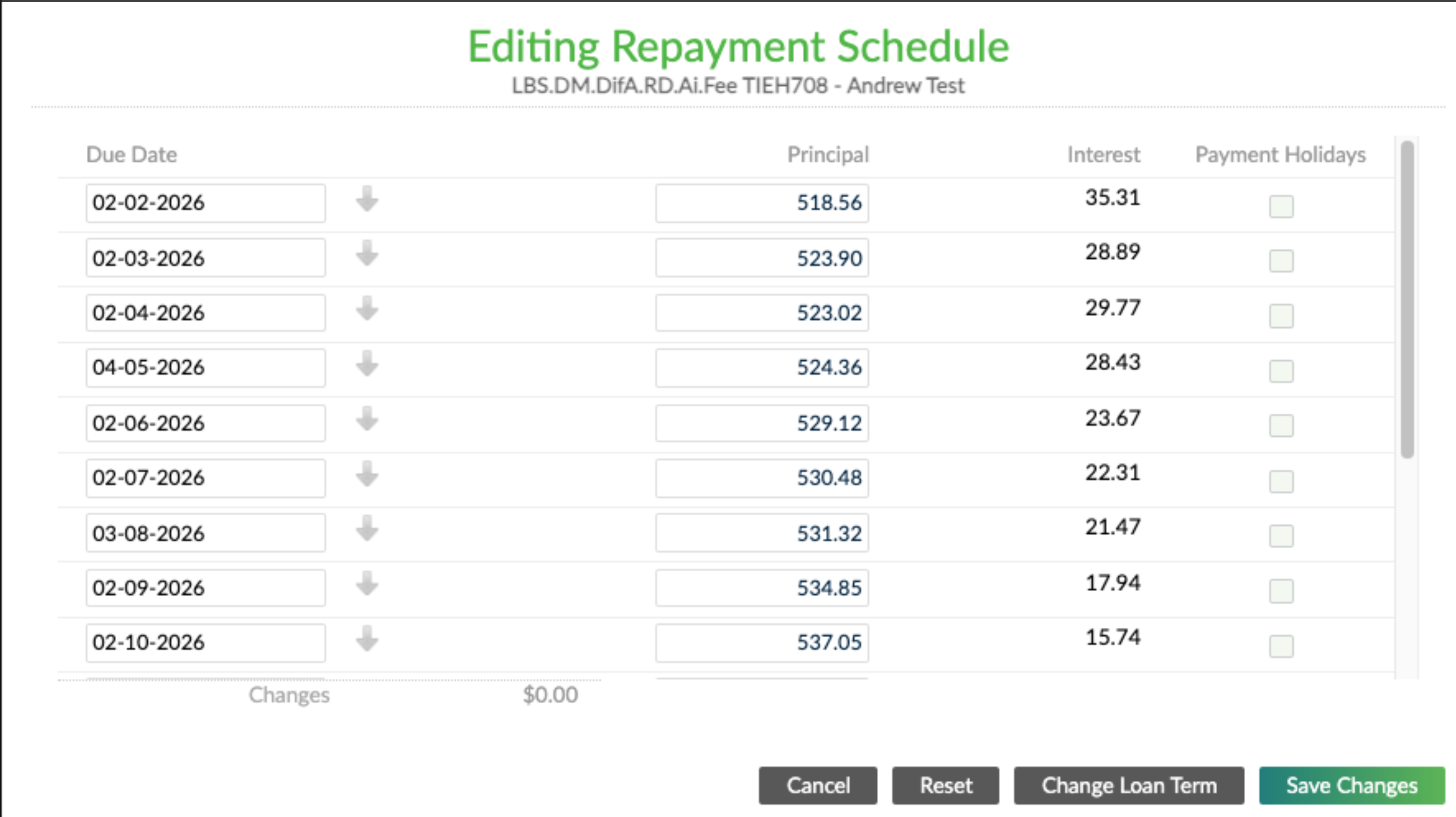
This functionality allows users to:
- Change the due dates of repayments.
- Edit the expected principal amount within an installment (available for Dynamic Mortgages only).
- Adjust the overall term of the loan.
Bulk update of subsequent due dates in the UI
To update the subsequent due dates in the UI starting from a specific point in time, you can select the downward pointing arrow next to a due date to apply that date to all following due dates. This feature is designed to respect the product-level configuration regarding due date handling, specifically whether due dates should remain fixed or be automatically shifted if they fall on a non-working day.
Adjust principal payments
The product setup includes functionality to adjust the principal amount scheduled for repayment within a specific installment. Since each payment comprises both interest and principal, the Edit principal feature allows users to set the exact principal amount to be repaid with a given installment. This change consequently impacts the total amount of that particular repayment. It is important to note that any increase or decrease in the principal component of one installment necessitates a corresponding adjustment to the principal in another installment, ensuring the total required principal is repaid over the full loan term.
To edit the schedule (edit due date, edit principal, payment holidays) via the API, use the Edit Schedule endpoint: Update loan account schedule
Change loan term
To change the loan term via the UI:
- In the Editing Repayment Schedule screen, click the Change Loan Term button to open a modal.
- In this modal, you can enter the new loan term. A preview of the updated repayment schedule, including the new total amount due, will be generated immediately.
- You can then choose to either save the change to apply the new schedule or reject the change, which will keep the original loan terms and schedule intact.
To change the loan term via the API, use the Change Loan Term endpoint: Change loan account term