Getting Started with Mambu MCP
Mambu MCP is currently available as a Limited Availability feature. To request access or more information, contact your Mambu account executive or your customer success manager.
This guide gets Mambu MCP running for the first time. The first part is for a Mambu Core administrator, who sets up Mambu MCP in Agent Studio and configures its permissions. The second part is for anyone connecting an MCP-compatible client to Mambu MCP.
Prerequisites
- An active Mambu MCP subscription
- A Mambu Core administrator account, to set up Mambu MCP
- A Mambu user account, to connect a client
- An MCP-compatible client
Set Up Mambu MCP
This part is for a Mambu Core administrator setting up Mambu MCP for the first time.
Step 1: Sign In to Agent Studio
There are two ways to open Agent Studio. The first time your organisation opens it, you must use Option 1, the Mambu Core route. It signs you in and activates your subscription for the tenant in the background, with no separate step. You must be a Mambu Core administrator to do this.
Option 1: From Mambu Core In Mambu Core, go to Administration > Mambu AI and choose Open Agent Studio.
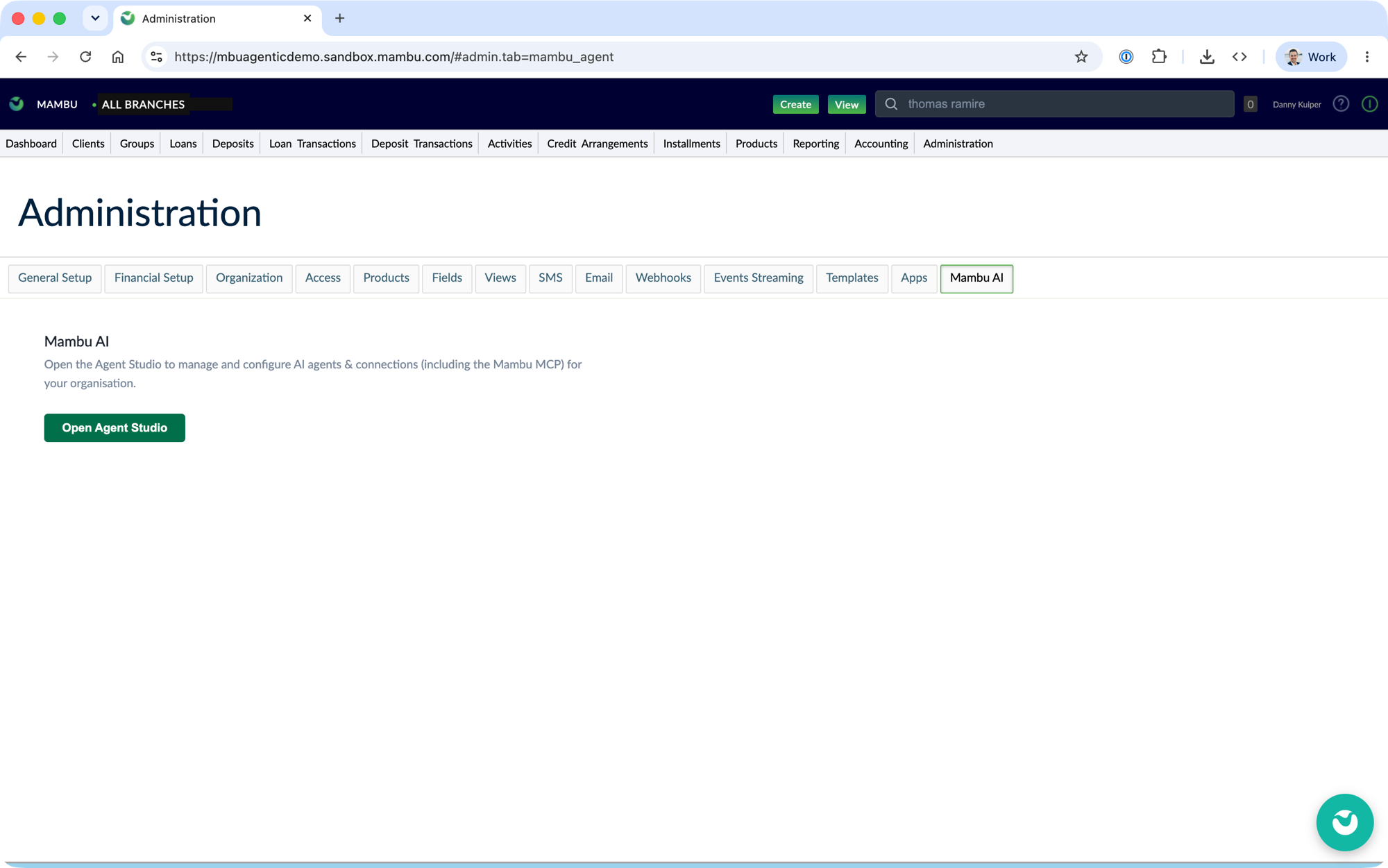
Option 2: Direct link Open the Agent Studio link provided by Mambu and choose Authenticate with Mambu.
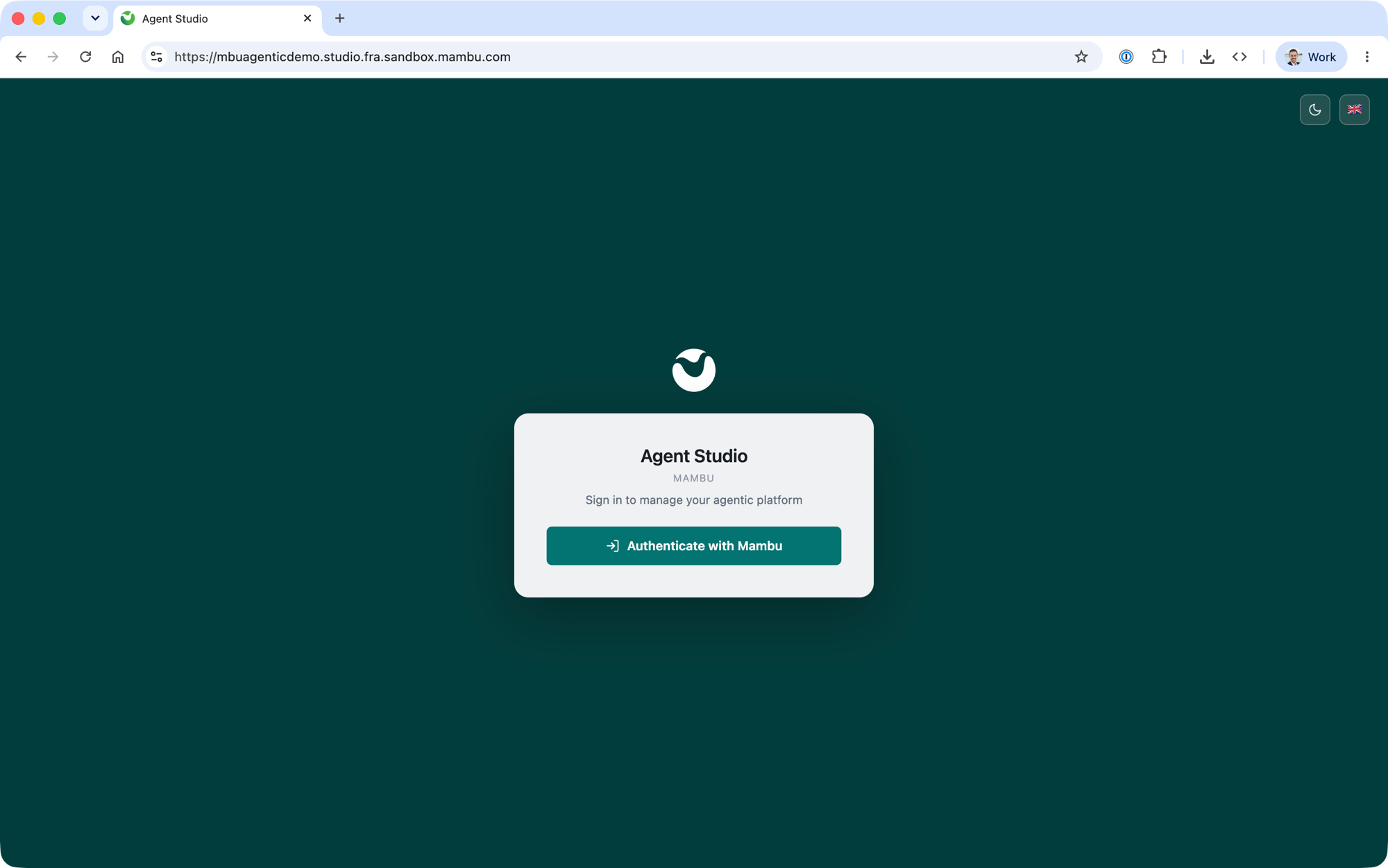
A user without Agent Studio access sees an Access denied screen. Ask an existing administrator to grant Studio access.
Step 2: Configure Access
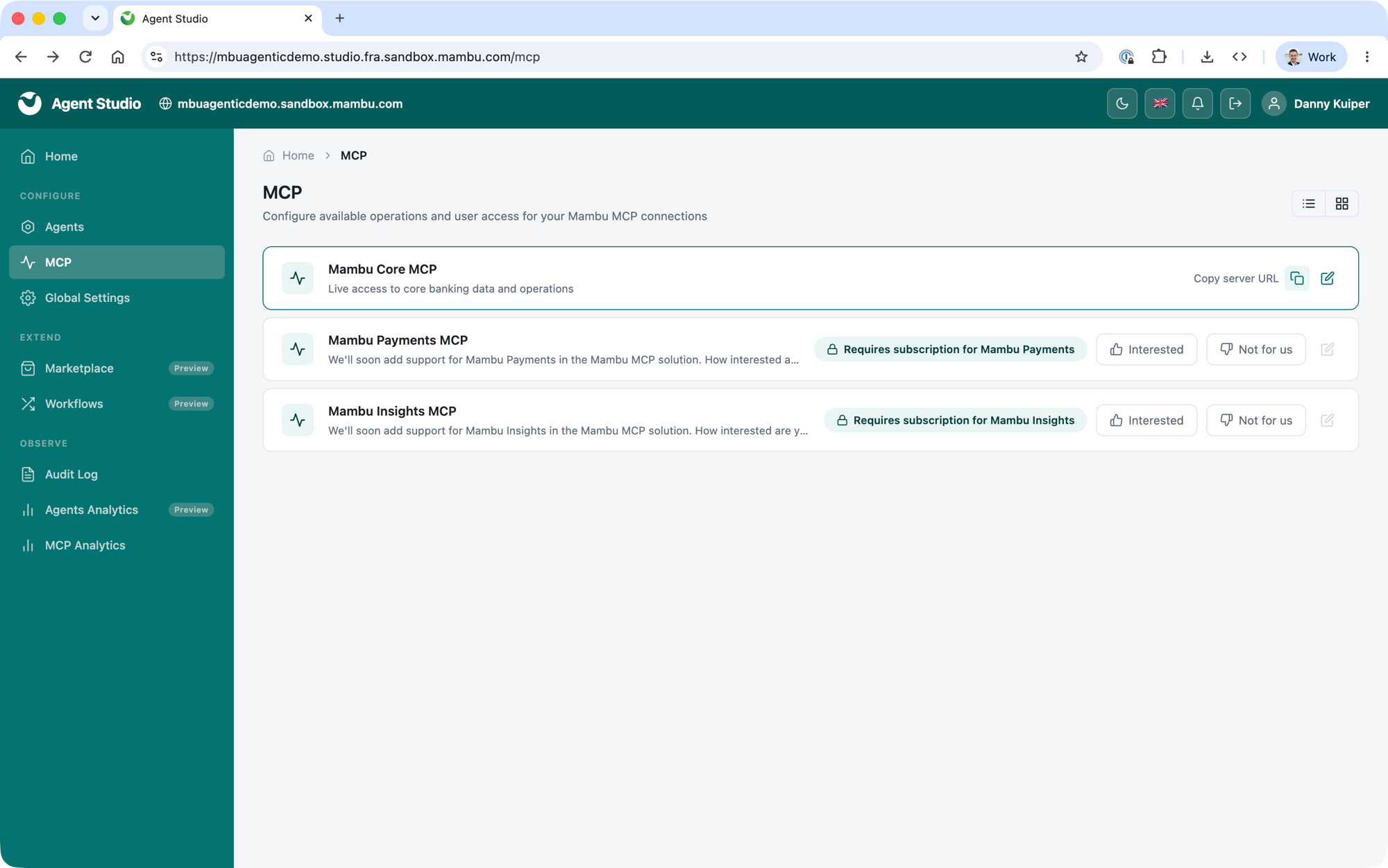
In Agent Studio, go to Configure > MCP. Here you choose which operations are available to the tenant, set up reusable permission templates, and grant individual user access. Access is read-only by default, and every execute operation stays off until you enable it. See Configuring Access for the full guidance.
Connecting Your Client
This part is for anyone connecting an MCP-compatible client to Mambu MCP. If you use Mambu MCP through Mambu Agents, the connection is already set up for you, so you can skip ahead to Step 4.
Step 1: Find Your Mambu MCP URL
Each Mambu MCP connection has its own URL. The first connection available is to Mambu Core. In Agent Studio, go to Configure > MCP and use Copy server URL on the Mambu Core MCP connection, shown below. If you do not have access to Agent Studio, ask your system administrator for the URL.
Step 2: Configure Your Client
Add the Mambu MCP connection to your client. Mambu MCP works with any client that implements the Model Context Protocol. See Connecting Your Client for the configuration steps, covering a few commonly used clients including Claude Desktop, Claude Code, Junie, and VS Code.
Step 3: Sign In and Authenticate
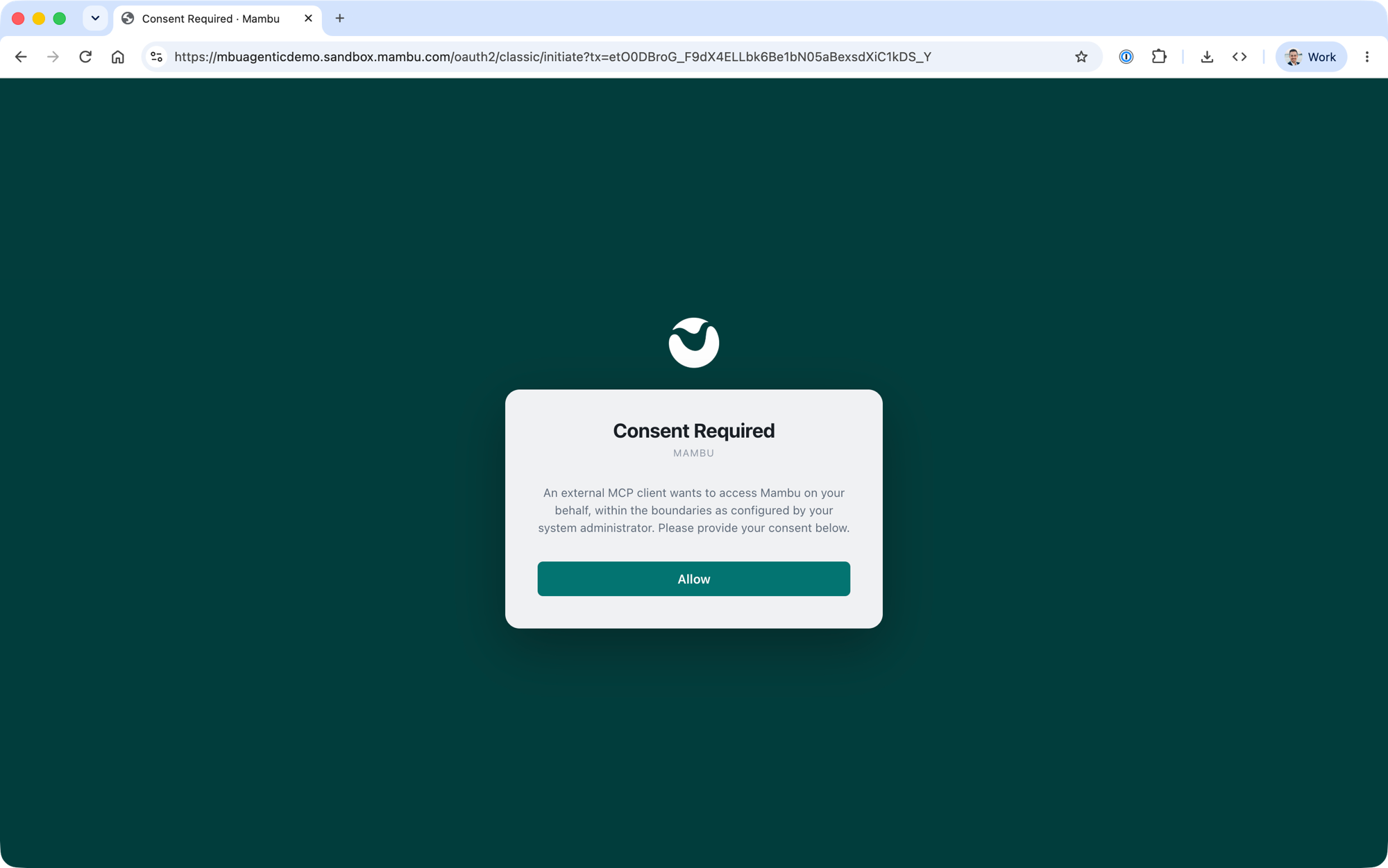
The first time your client uses Mambu MCP, a browser window opens. Sign in with your Mambu credentials, then select Allow on the consent screen to grant the client permission to access Mambu on your behalf.
Step 4: Ask Your First Question
Your client is now connected to Mambu MCP. You can start asking questions about your Mambu data in plain language, directly from your AI client.