Getting Started with Mambu Agents
Mambu Agents is currently available as a Limited Availability feature. To request access or more information, contact your Mambu account executive or your customer success manager.
This guide gets Mambu Agents running for the first time. The first part is for a Mambu Core administrator: signing in to Agent Studio, giving your team access, and making an agent available to your users. The second part is for the Mambu Core users who will interact with an agent.
Prerequisites
- An active Mambu Agents subscription
- An active Mambu MCP subscription
- A Mambu Core tenant
- A Mambu Core administrator account
Set Up Mambu Agents
This part is for a Mambu Core administrator setting up Mambu Agents for the first time.
Step 1: Sign In to Agent Studio
There are two ways to open Agent Studio. The first time your organisation opens it, you must use Option 1, the Mambu Core route. It signs you in and activates Mambu Agents for the tenant in the background, with no separate step. You must be a Mambu Core administrator to do this.
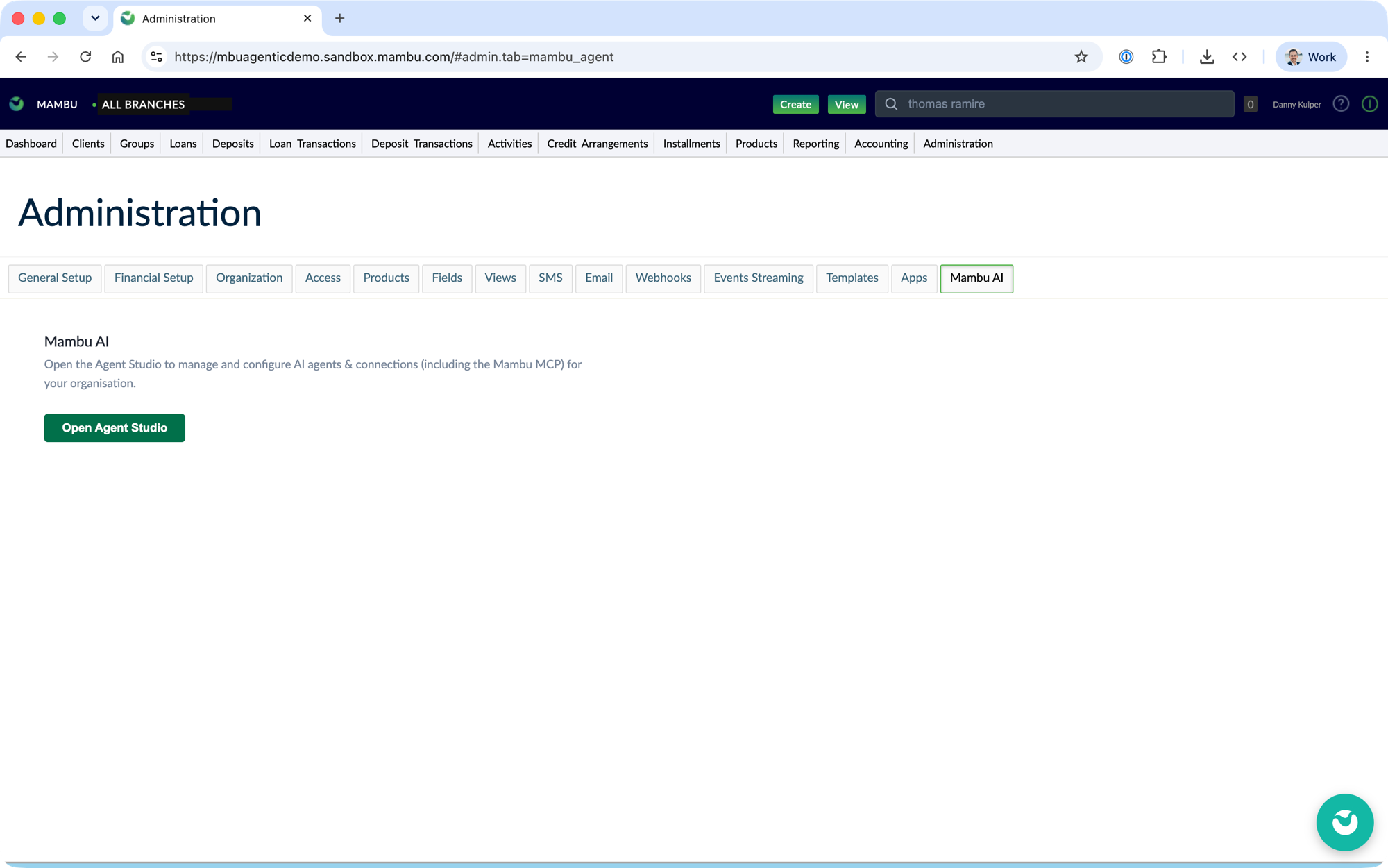
Option 1: From Mambu Core In Mambu Core, go to Administration > Mambu AI and choose Open Agent Studio.
Option 2: Direct link Open the Agent Studio link provided by Mambu and choose Authenticate with Mambu.
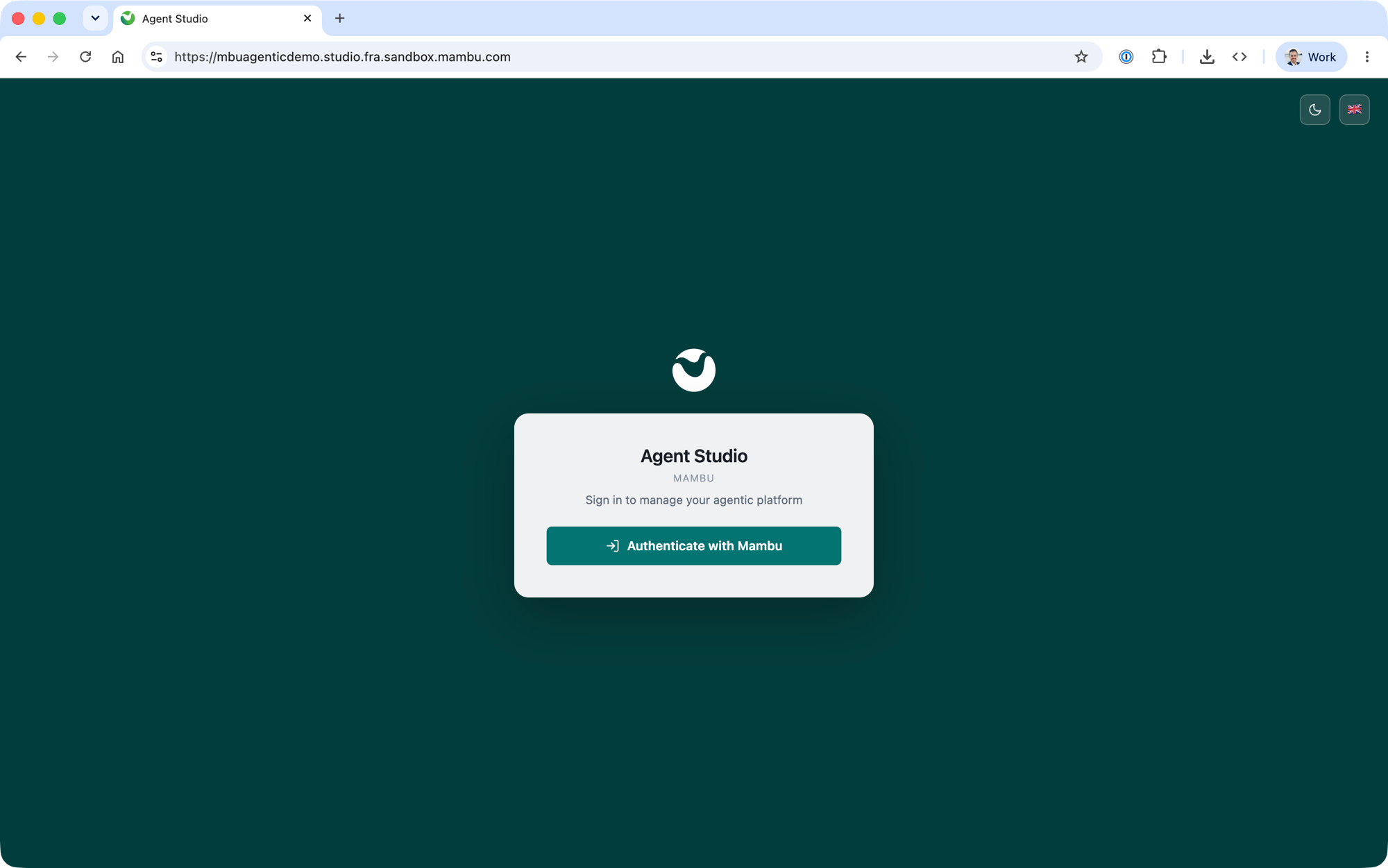
A user without Agent Studio access sees an Access denied screen. An existing administrator can grant access in the next step.
Step 2: Grant Studio Access to Your Team
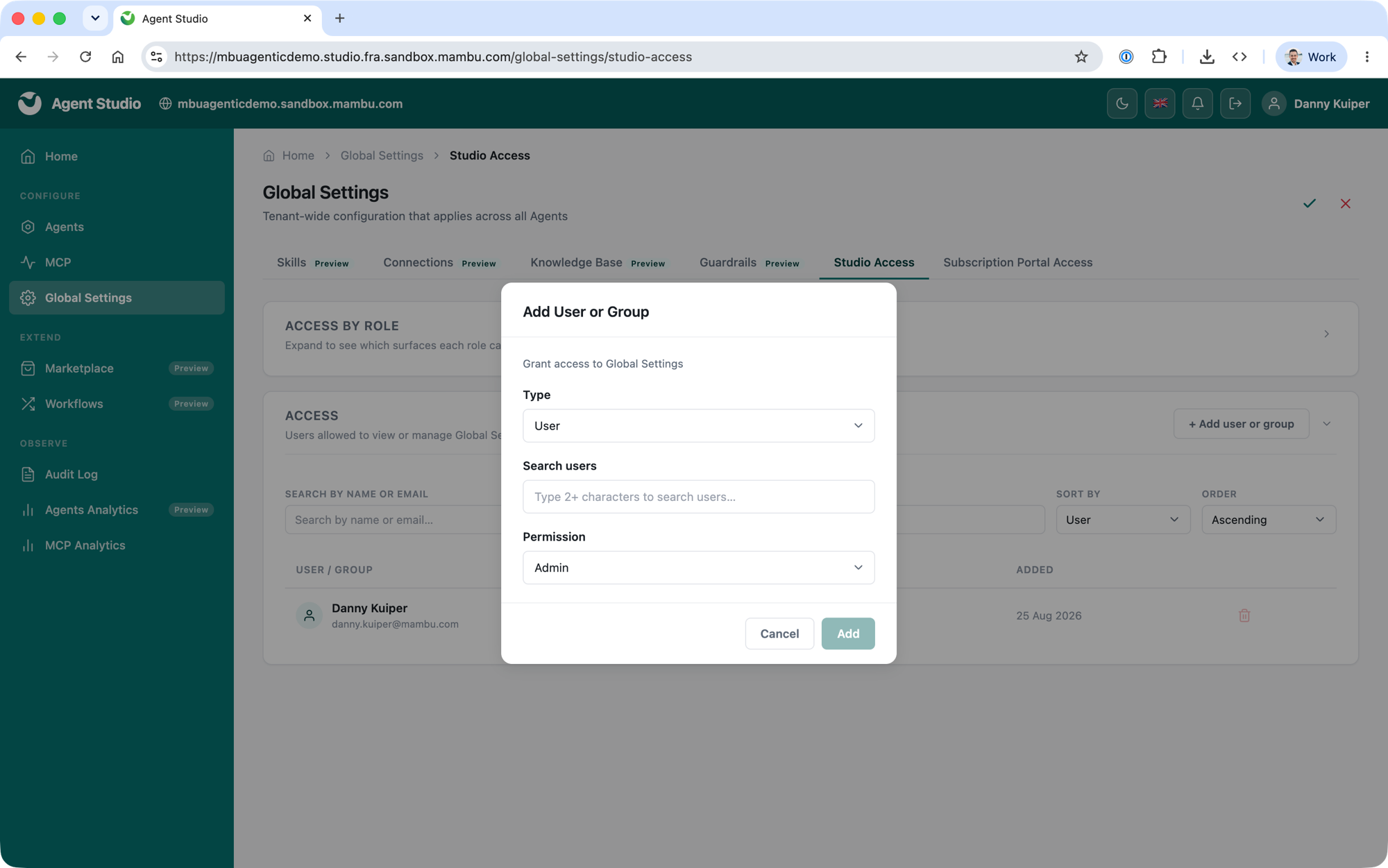
Other people who will manage agents need access to Agent Studio. In Agent Studio, open Global Settings > Studio Access, choose Add user or group, and grant a Mambu Core user or group access as Admin or Editor. After adding a user on the form, remember to select the checkmark button to apply your changes. They do not take effect until you do.
Step 3: Open an Agent
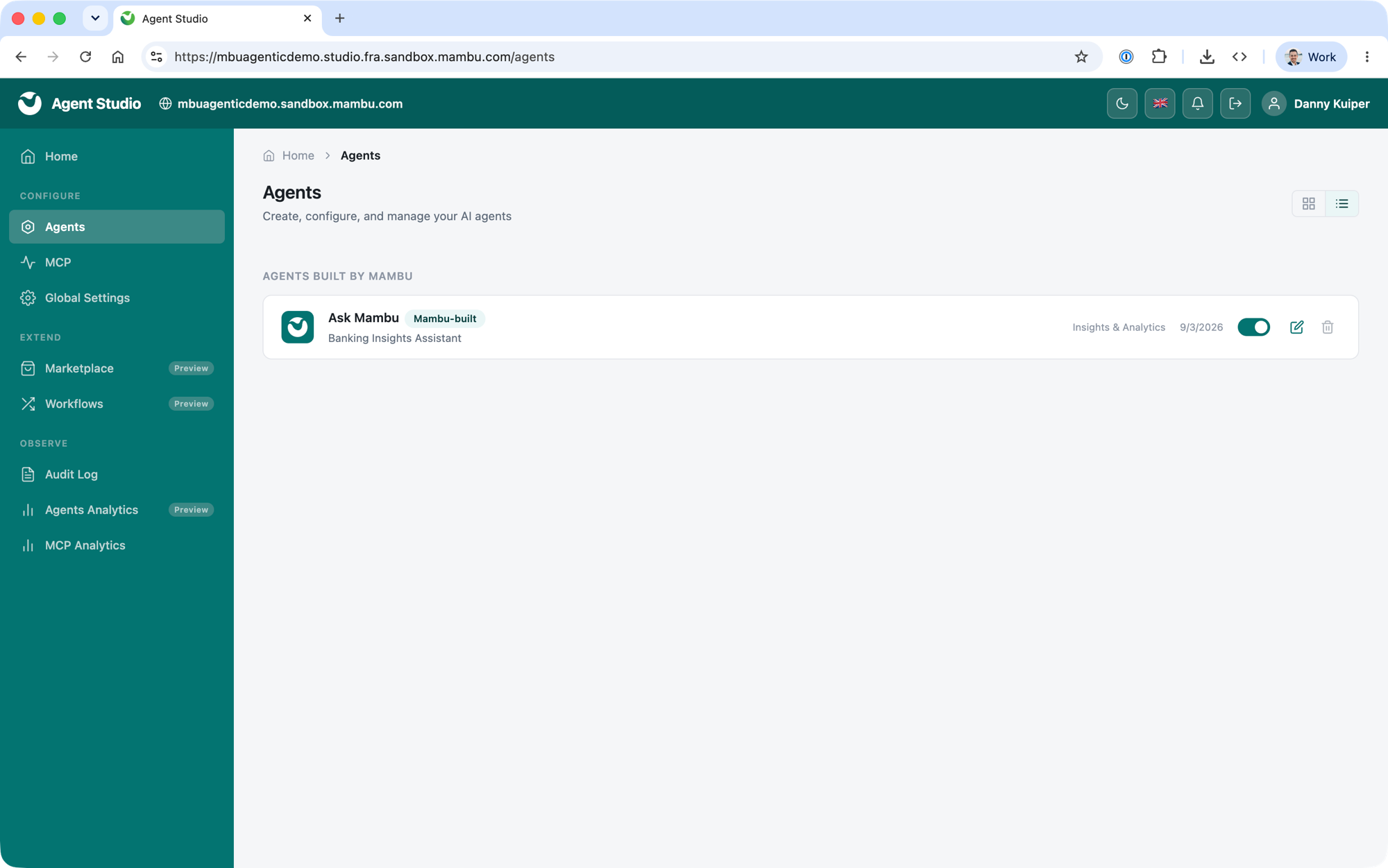
In Agents, select the agent you want to configure, for example Ask Mambu. The agent opens in an editor with tabs for Agent DNA, Skills, Connections, Knowledge Base, Guardrails and Agent Access.
Step 4: Grant Access to the Agent
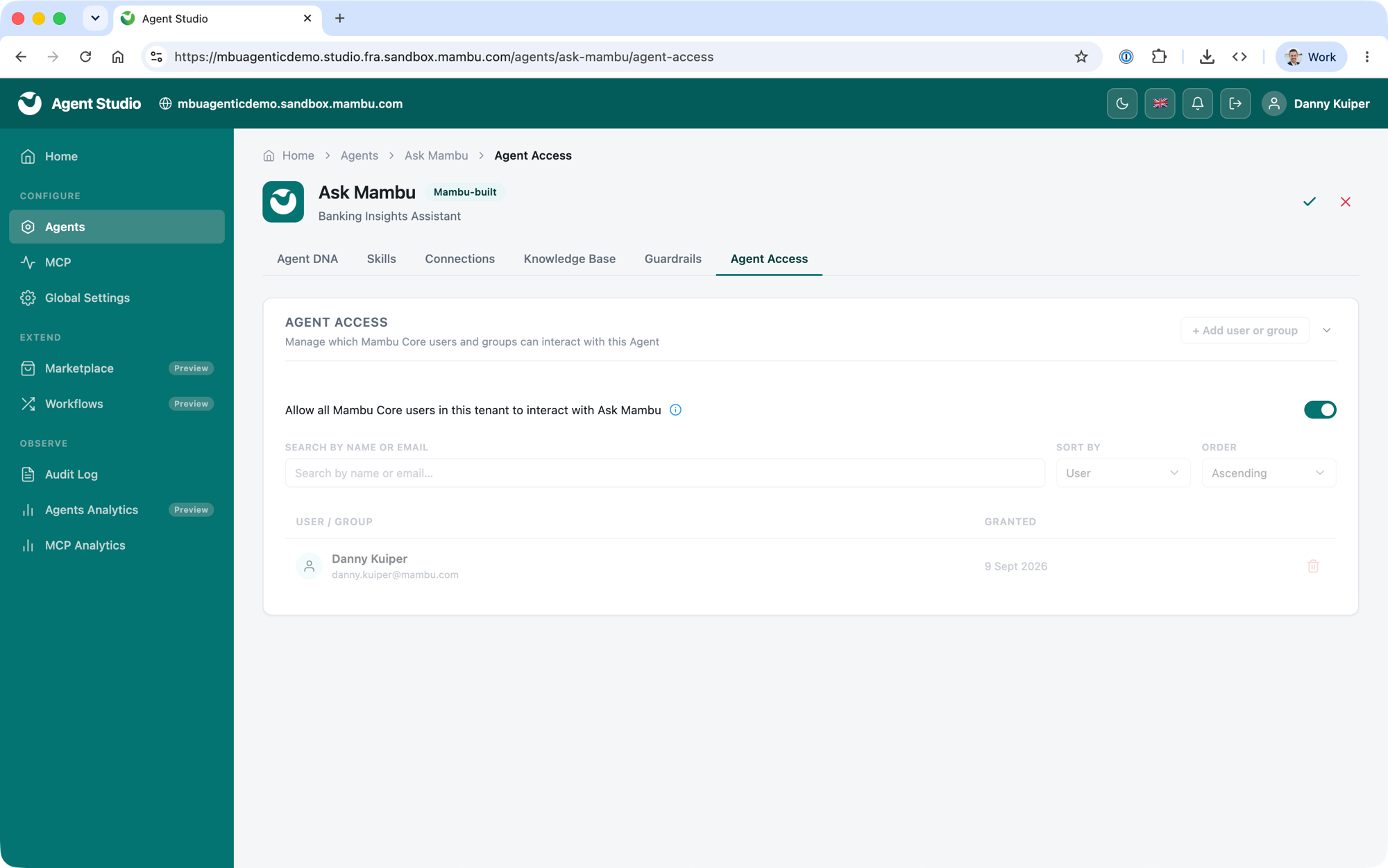
By default, an agent is available only to the administrator who set it up. On the agent's Agent Access tab, either turn on Allow all Mambu Core users in this tenant to interact with the agent, or add specific users or groups.
Interact with an Agent
This part is for the Mambu Core users who have been given access to an agent.
Step 1: Open Mambu Core
Sign in to Mambu Core as you normally would.
Step 2: Open the Agents Chat Window
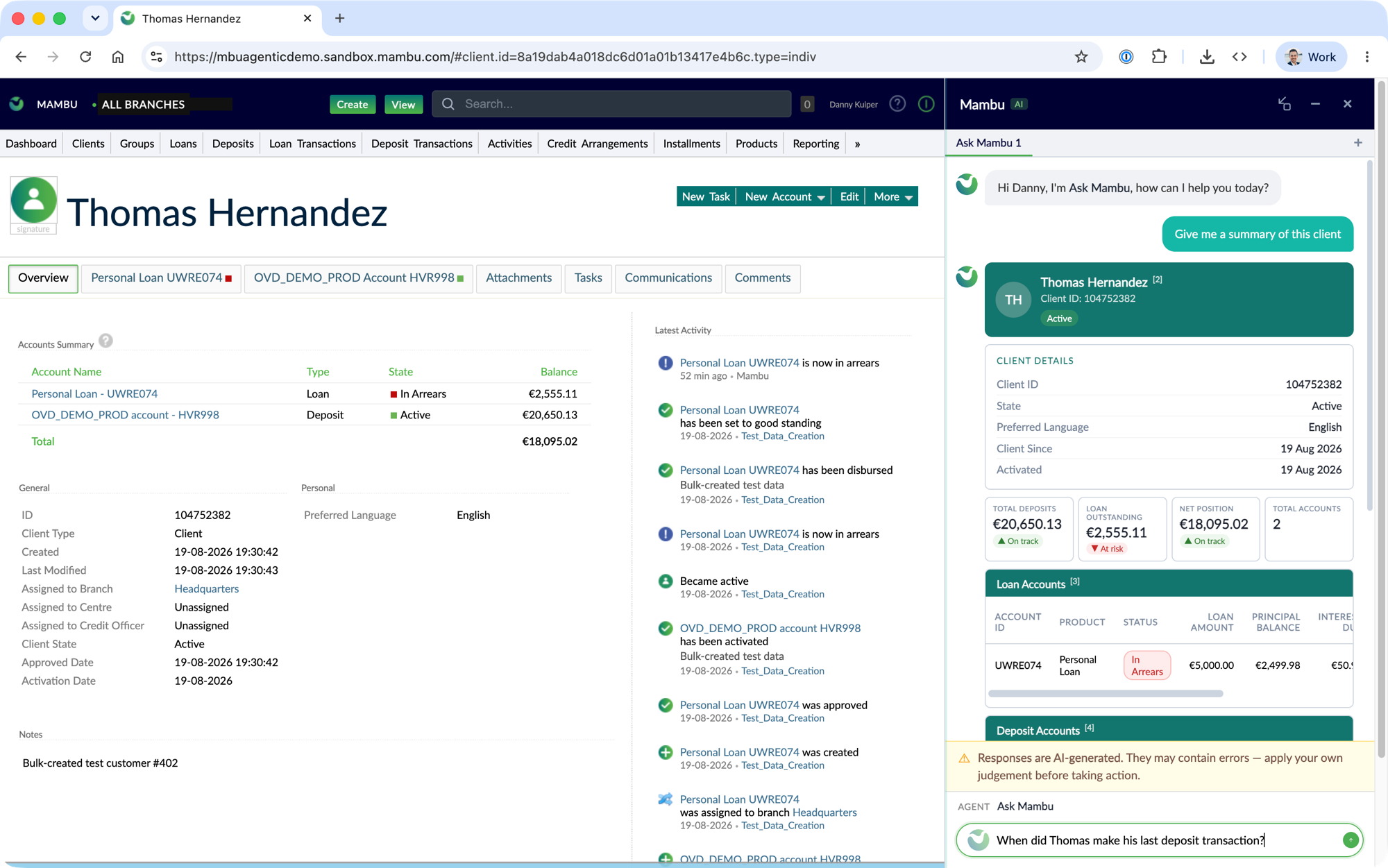
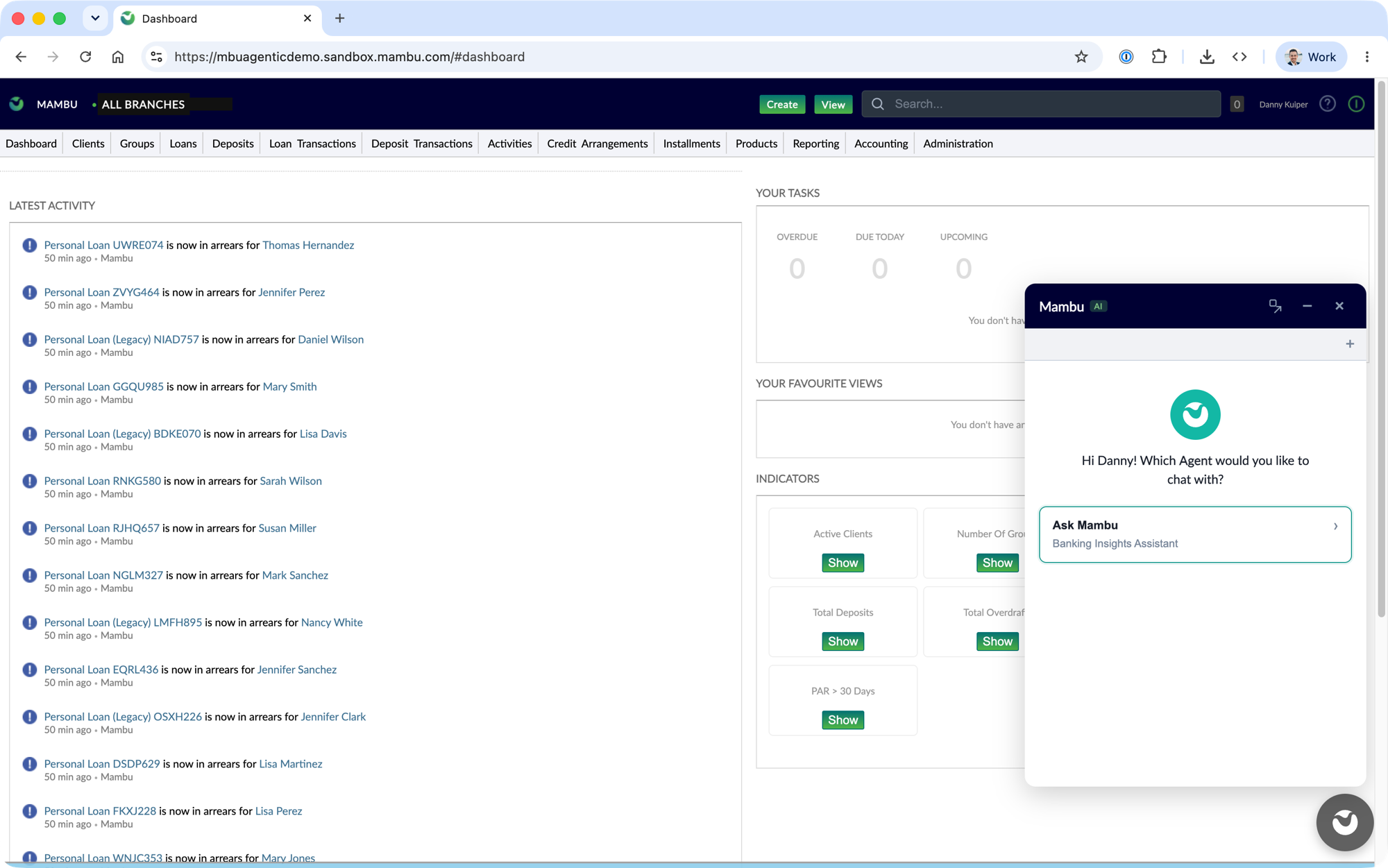
Open the agents chat window from its icon in the Mambu navigation, then choose the agent you want to interact with.
Step 3: Ask a Question
Ask your question in plain language. If you chose Ask Mambu, for example, you can ask about everyday banking operations, such as:
- Customer Intelligence: "Brief me on client c-0001, including their full relationship with us"
- Deposits: "What is the available balance on this account, including any holds?"
- Loans & Credits: "Why is loan l-0001 showing 22 days in arrears?"
- Operations & Compliance: "What is the dormancy rule on this deposit product, and where is it from?"
- Portfolio & Risk: "Which customers missed payments this week on dynamic term loans for this branch?"
- Products & Knowledge: "What are the rate and fee terms on this loan product?"